Most multi-site UKG customers have zero spare time clocks. This guide covers who owns the device, the punch record and the site, plus a five part spare, swap, recovery, maintenance and retirement runbook, and how CloudApper AI TimeClock for UKG fits.



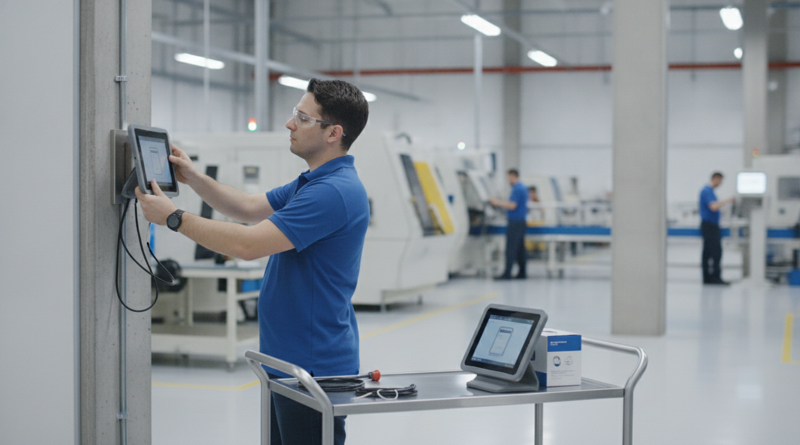
Table of Contents
- What UKG Does Natively
- Where the Friction Shows Up
- What to Do Within UKG First
- Where Native Tools Run Out
Count the time clocks across your sites. Now count the spares. For most multi-site UKG customers the second number is zero, and the plan for a dead clock is a phone call. CloudApper AI TimeClock for UKG runs on standard iPads and Android tablets that sync to UKG, which makes a spare cheap enough to stage, and a runbook short enough to write down.
What UKG Does Natively
UKG’s InTouch DX is a purpose-built, fixed terminal with its own support and replacement channel through UKG. That single relationship is a real advantage and the right answer for many sites. Your UKG account team can confirm the repair and exchange process.
Where the Friction Shows Up
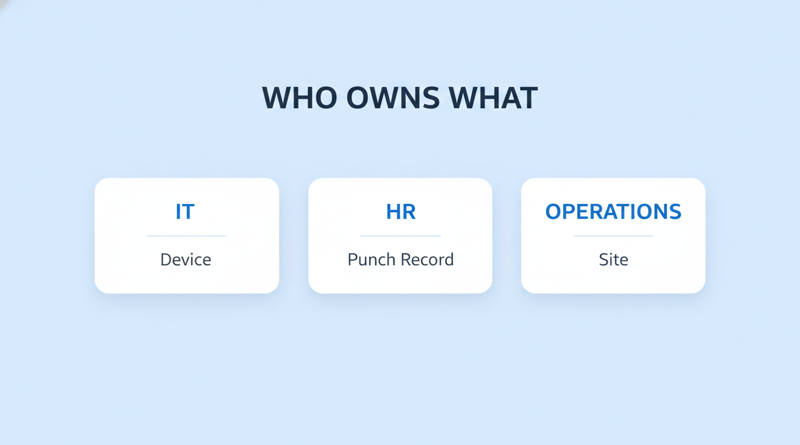
Tablets bring their own failure modes: accidental damage, theft, battery wear and operating system updates that change behavior. The question is who owns what. IT usually owns the device, HR owns the punch record, and operations owns the wall. When nobody owns the swap, a failure becomes missed punches.
What to Do Within UKG First
Write the ownership down before you add hardware:
- Name a device owner, a site contact and an escalation path for each location.
- Keep a missed punch baseline, as in how to baseline your missed punch rate in UKG, so a failure shows up quickly.
- Review the support and repair path for fixed terminals in repair, exchange or tablet: the decision framework.
Where Native Tools Run Out
UKG tells you what arrived. It cannot tell you a tablet on a distant dock has a dead battery, so device health needs its own owner. CloudApper AI TimeClock for UKG buffers punches on the device, as described in offline punch buffering for UKG time clocks, which protects the record while a swap is under way.

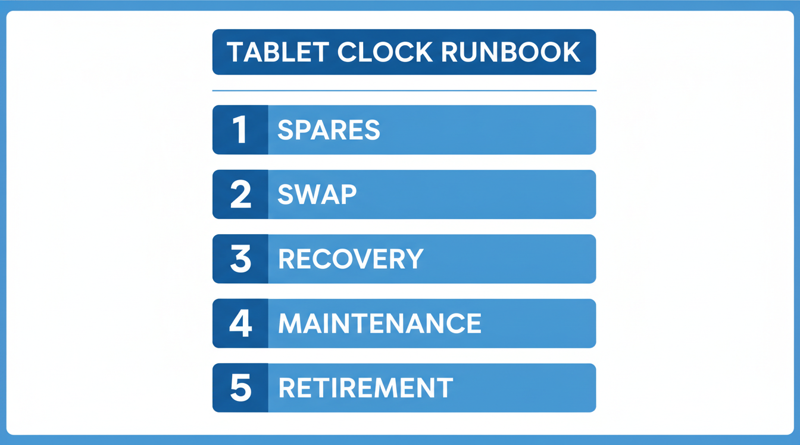
A basic runbook has five parts:
- Spares: stage at least one configured tablet per region, mounted or ready to mount.
- Swap: power down, mount the spare, sign in, confirm a test punch reaches UKG.
- Recovery: confirm punches held on the failed device synced before retiring it.
- Maintenance: set update windows through kiosk mode and MDM, and check battery and mounts on a schedule.
- Retirement: wipe the device and purge templates per the template purge guidance.
Harsh sites need purpose-chosen mounts, as in tablet time clocks in harsh environments.
CloudApper AI TimeClock for UKG
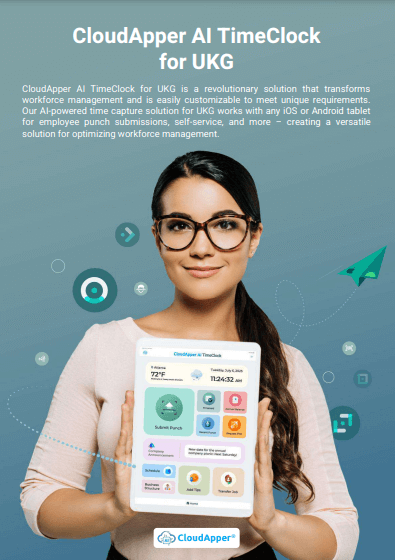
CloudApper AI TimeClock for UKG is an iPad and tablet based, affordable alternative to InTouch DX and other legacy UKG (Kronos) clocks, at roughly 25% of the cost of traditional UKG clocking hardware. It includes face recognition, offline capture and custom attestations, and syncs to UKG Ready and Pro WFM with audit trails. A standard tablet makes a spare affordable, and the runbook scales in a rollout planned with IT.
Frequently Asked Questions
Q: How many spare tablet time clocks should I keep?
Start with one configured spare per region and adjust to outage history and travel time. Test it with a real punch.
Q: What happens to punches if a tablet clock fails?
A clock that captures offline holds punches on the device until it syncs. Confirm they reached UKG before you retire the device.
Q: Who should own tablet time clock maintenance?
IT usually owns the device, HR the punch record and operations the site. Name one escalation contact per location.
Q: How often should tablet time clocks be refreshed?
Set it by manufacturer support life and your failure history, and review it yearly.
Q: Do I have to replace InTouch DX terminals that work?
No. A tablet can run beside existing terminals, and you can add it where cost or coverage makes sense.
If you are planning spares for a tablet fleet, book a demo of CloudApper AI TimeClock for UKG and have your UKG admin validate the sync.


November 25, 2026
Colorado and Nevada Daily Overtime in One UKG Environment: Two Thresholds, One Punch Record
Colorado pays overtime after 12 hours in a day or 12 consecutive hours, while Nevada requires daily overtime after 8 hours for lower-paid employees. This guide covers mapping both in UKG, testing edge cases, and how CloudApper AI TimeClock for UKG supplies clean, location-tagged punches.
November 24, 2026
Oregon Meal Periods in UKG: What the Punch Record Must Prove When Lunch Is Under 30 Minutes
Oregon meal periods are 30 minutes with narrow paid 20 to 29 minute exceptions. This guide covers the common UKG configuration traps, the evidence set to review at each site, and how CloudApper AI TimeClock for UKG captures meal punches and attestations at the break room.
November 23, 2026
When Punches Cannot Reach Payroll: The Outage Evidence Packet Auditors Ask For
When punches cannot reach payroll, auditors ask for the original time. This guide covers FLSA recordkeeping basics, a written continuity procedure, the five item outage evidence packet, and how CloudApper AI TimeClock for UKG keeps device-side punch times intact for UKG.
November 19, 2026
Enroll Once, Punch Anywhere? Biometric Enrollment for Floaters and Cross-Site Staff on UKG
Float pool staff punch at several sites, so one enrollment has to work in many places. This guide covers home versus visiting rules, transfers, consent by jurisdiction, fallback options, and a five step cross-site test, plus how CloudApper AI TimeClock for UKG fits.