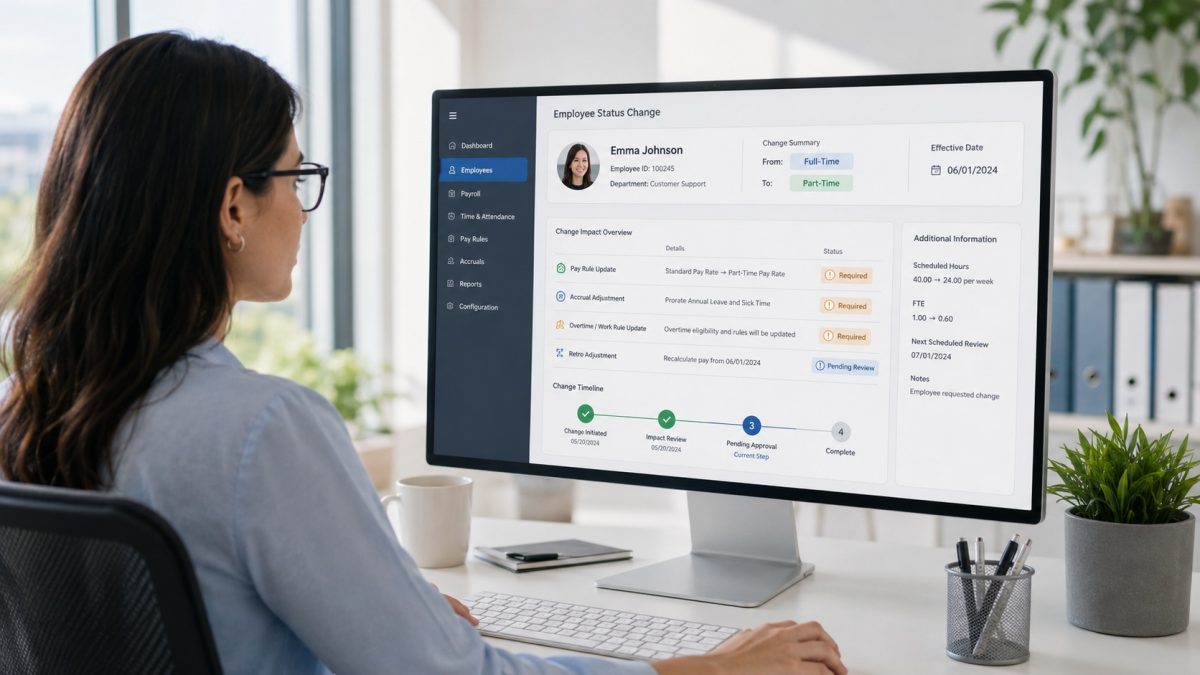

- Understanding Timesheets
- Accessing Your Timesheet
- Exploring Timesheet Fields and Functionality
- Benefits of Viewing Your Timesheet
- Tips for Effective Timesheet Management
- Related Timesheet Tasks in UKG Ready
- FAQ: Viewing Your Timesheet in UKG Ready
- Fewer timesheet corrections start at the clock
To view your timesheet in UKG Ready, go to Menu > My Info > My Time > Timesheet > Current Timesheet, or open the My Timesheet widget on your dashboard. The Time Entry tab shows your worked time for the current pay period, with daily rows you can expand for cost centers, notes, and time off — and, depending on permissions, actions to save, submit, or request changes.
Understanding Timesheets
The timesheet serves as the cornerstone of accurate time tracking and payroll processing. Here’s what you need to know:

- Source of Truth: Timesheets serve as the source of truth for payroll computations because they offer an extensive record of employees’ worked time.
- Functionality: Employees and managers can enter, modify, review, submit, and approve worked time and time off on timesheets, depending on the setup of the company and security permissions.
Accessing Your Timesheet
Employees can effortlessly access their timesheets through two primary methods:
- Menu Navigation: Navigate to Menu > My Info > My Time > Timesheet > Current Timesheet.
- Dashboard Widget: Alternatively, employees can access their timesheets directly from the My Timesheet widget on the dashboard.
Exploring Timesheet Fields and Functionality
Understanding the various components of your timesheet is essential for effective time tracking:
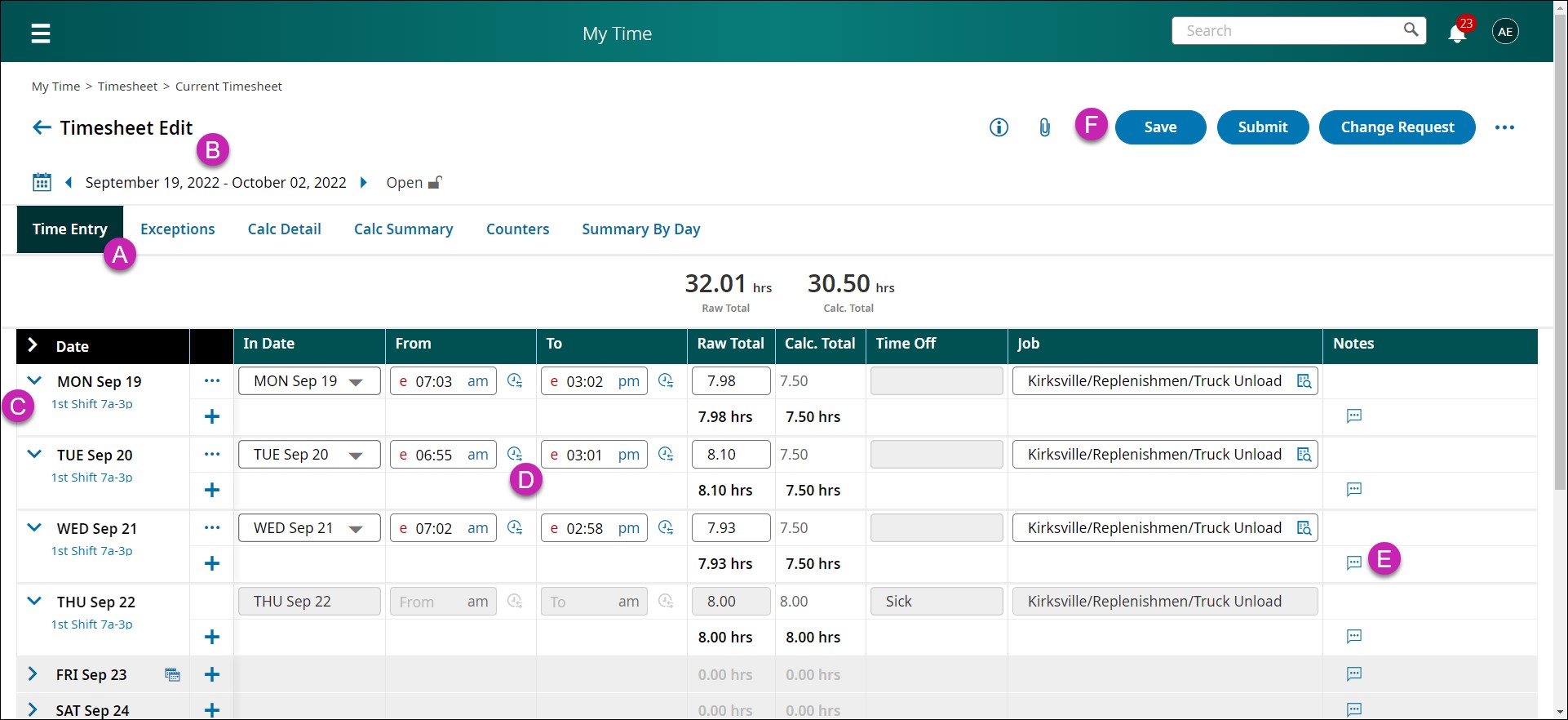
- Timesheet Tabs (A): The timesheet and time entries for the current pay period are shown on the Time Entry tab. Other tabs like Pay Calculation and Exceptions may be enabled depending on how the business is configured.
- Pay Period (B): Use the arrows or calendar icon to navigate to different pay periods and view corresponding timesheets.
- Daily Rows (C): Each day of the week’s time entry data can be expanded or collapsed to provide a thorough breakdown of worked time and related information.
- Time Entries (D): These fields show the amount of time worked and pertinent data, like cost centers or vacation time. Employees can submit a Timesheet Change Request or enter data, depending on their permissions.
- Note Icon (E): Select this icon to view or add notes related to specific time entries or days, providing additional context or clarification.
- Actions (F): Available actions may include Save, Submit, and Change Request, allowing employees to manage their timesheets efficiently.
Benefits of Viewing Your Timesheet
- Accuracy: Regularly reviewing your timesheet ensures accuracy in time tracking, reducing errors in payroll processing.
- Efficiency: Accessing and managing your timesheet from a centralized location streamlines the time-tracking process, saving time and effort.
- Transparency: Understanding your timesheet provides transparency into your worked time and associated activities, fostering accountability and compliance.
Tips for Effective Timesheet Management
- Regular Review: Make it a habit to review your timesheet regularly to catch any discrepancies or missing entries.
- Timely Submission: Submit your timesheet promptly to ensure timely and accurate payroll processing.
- Communication: Maintain open communication with managers regarding any adjustments or corrections in your timesheet.
By mastering your timesheet, you’re taking a proactive step towards accurate time tracking and payroll management. Stay tuned for more insights from UKG on optimizing workforce productivity. Happy time tracking!
Related Timesheet Tasks in UKG Ready
Once you can see your timesheet, the next questions are usually about fixing it: how to submit a timesheet change request, how to split time allocation across cost centers, and for managers, how to approve timesheets and edit time entries.
FAQ: Viewing Your Timesheet in UKG Ready
Where do I find my timesheet in UKG Ready?
Go to Menu > My Info > My Time > Timesheet > Current Timesheet, or open the My Timesheet widget on your dashboard. Use the pay period arrows or calendar icon to view past timesheets.
Why can’t I edit my timesheet in UKG Ready?
Timesheet editing depends on your company’s configuration and your security permissions. Many organizations allow employees to submit a Timesheet Change Request instead of editing entries directly, and timesheets that have been submitted or approved are typically locked.
How do I fix a wrong entry on my UKG Ready timesheet?
If direct editing is enabled, expand the daily row and correct the time entry, then save. If not, use the Change Request action to submit a correction for your manager’s approval.
What do the tabs on my UKG Ready timesheet mean?
The Time Entry tab shows your worked time for the pay period. Depending on configuration, additional tabs like Pay Calculation (how your hours translate to pay categories) and Exceptions (flagged issues such as missed punches) may also be available.
Fewer timesheet corrections start at the clock
Most timesheet questions trace back to punches that were missed, misplaced, or entered by hand. CloudApper AI TimeClock captures punches on any tablet with Face ID verification and posts clean time data straight to UKG Ready — so the timesheet employees open is already right.
See a free demo of AI TimeClock for UKG Ready