Warehouse staff, field crews and plant workers need different questions at clock-in, and those questions change with every new site, client or crew. Learn how to configure and update department-specific punch flows in UKG by location, role and work group, with every answer synced back to UKG.



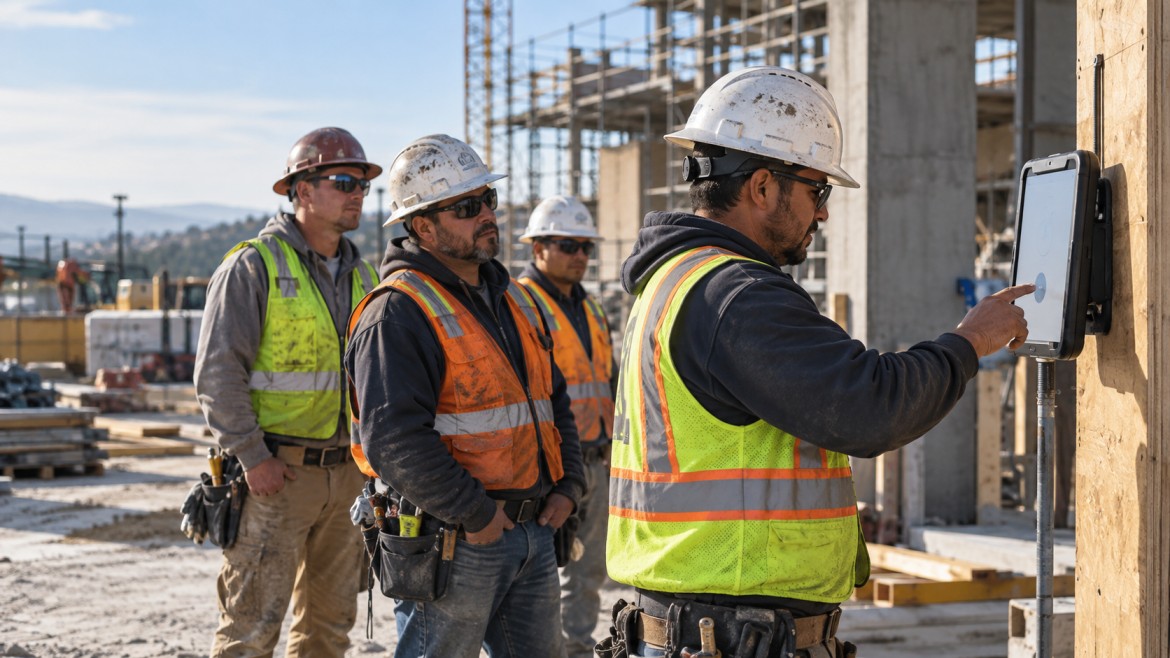
Table of Contents
- Why clock-in prompts need to change as often as your operations
- Configuring UKG clock-in prompts for every location, role and work group
- Built-in features that connect directly to UKG
- Giving every frontline team the right questions at the clock
Teams in the same company do different work, so they need to answer different questions when they clock in. Warehouse staff log which job they’re starting, field crews confirm which site they’re at, and plant workers confirm they’re wearing their safety gear. Department-specific punch flows in UKG show each group only the questions meant for them, so payroll gets the right information the first time.

UKG lets you configure clock-in prompts, and for an operation that sets them once, that may be all it needs. Most frontline businesses don’t stay the same for long, though. New job sites open, clients change, seasonal crews arrive and safety rules get updated, and each change means configuring prompts again, often at remote locations with their own compliance needs. CloudApper AI’s employee time clock for UKG makes those repeated changes easier. You configure the questions for each location, role and work group in the time clock, employees answer them on a standard tablet wherever they work, and every answer goes straight to UKG.
TL;DR
- UKG handles the initial setup well and stays in the system of record.
- Frontline operations keep changing, so prompts have to be configured again for new sites, clients, crews and rules.
- CloudApper AI’s employee time clock lets you configure and update prompts by location, role and work group on standard tablets, and every answer syncs to UKG.
- The result is prompts that keep up with the business, with fewer timecard corrections along the way.
Why clock-in prompts need to change as often as your operations
Configuring a separate flow for each department fixes the one-size-fits-all problem, but only for as long as the business stays the same, and frontline operations rarely do. Construction and field service crews move to new job sites every few weeks, and each site needs its own location check and safety questions. Farms, pop-up sites and remote crews often work where there’s no dedicated time clock and only a weak connection. In 3PL warehouses, every new client brings new cost centers and checks, and those have to come off the clock when the contract ends. Acquired locations arrive with their own roles and compliance needs too. Each change means configuring which questions go to which group again, and in a multi-site business that happens all year.
| Team | Example clock-in prompts |
|---|---|
| Warehouse / 3PL | Job or client cost center, dock zone |
| Construction / field crews | Site confirmation, safety gear check |
| Manufacturing plant | Line assignment, PPE confirmation |
| Seasonal or remote crews | Location check, offline punch capture |
Configuring UKG clock-in prompts for every location, role and work group
UKG gives organizations a strong base at the clock. It supports transfers at the punch, geofencing for mobile teams, and attestation workflows for compliance questions like time approval and missed punches, and admins can configure these for different groups. For an operation that sets its prompts once, that works well. The effort grows when prompts have to be configured again and again. Each new site, client, crew or rule means another round of profile changes in UKG, and a new remote location also needs a clock before its employees can answer anything. In construction, crews move often. A 2015 study of 989 workers on commercial construction sites, published in the American Journal of Industrial Medicine, found.
A study of 989 workers on commercial construction sites, published in the American Journal of Industrial Medicine, found that 554 of them spent less than a month on the site before moving on. When crews turn over that quickly, site prompts can’t wait for the next setup cycle. CloudApper AI’s employee time clock handles the changes in the time clock, so UKG’s pay rules and configuration stay as they are.
Built-in features that connect directly to UKG
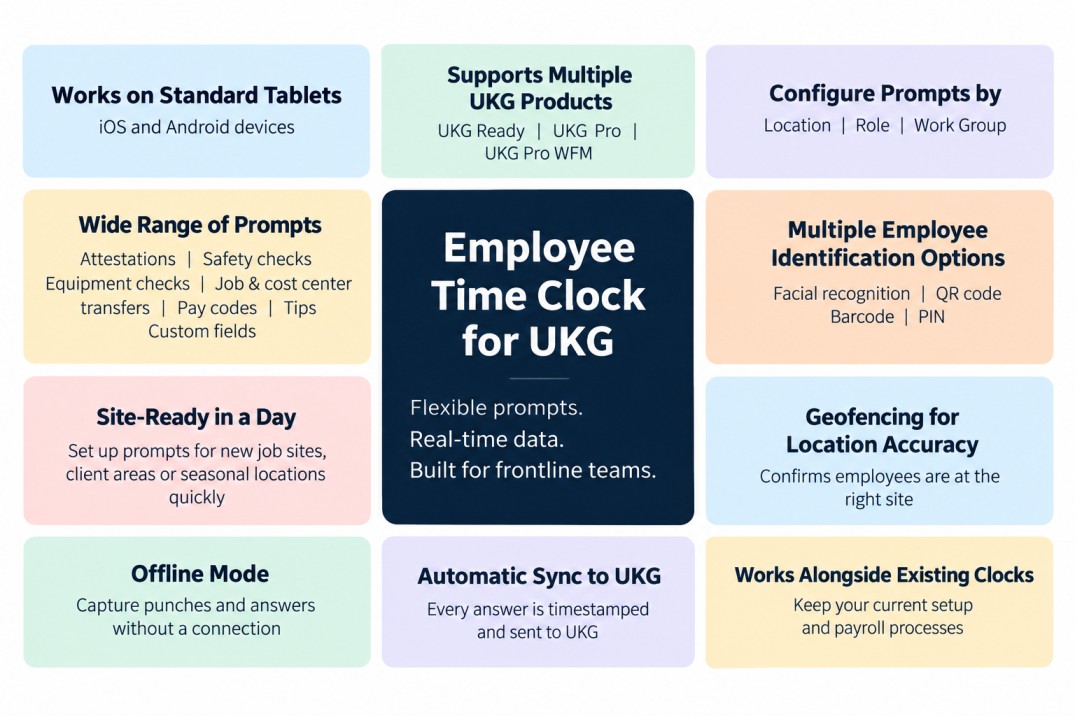
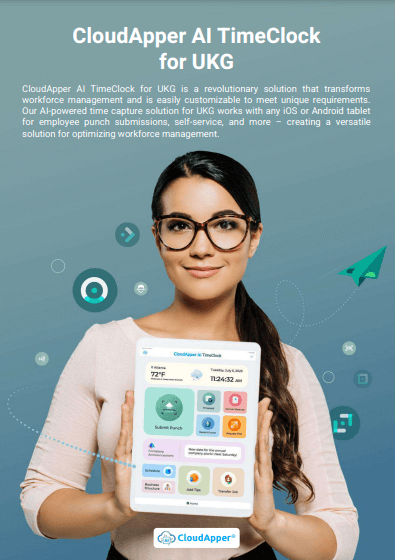
CloudApper AI’s employee time clock for UKG runs on standard iOS and Android tablets and works with UKG Ready, UKG Pro and UKG Pro WFM. Admins configure and update prompts by location, role and work group in one place. These include attestations, safety and equipment checks, job and cost center transfers, pay codes, tips and custom fields, and each answer is timestamped and sent to UKG. A new job site, client area or seasonal location can have its own prompts on a tablet the day it opens, and tablets can sit at each dock zone, line or site so checks happen where the work is. Employees identify with facial recognition, a QR code, a barcode or a PIN, and geofencing confirms they’re at the right site. Offline mode keeps capturing punches and answers at remote locations and syncs them when the connection returns. It also runs alongside your current clocks, so UKG keeps running payroll as it always has.

Giving every frontline team the right questions at the clock
The clock-in is the first record of a frontline employee’s shift, and what each team needs to confirm there keeps changing with new sites, clients, crews and rules. UKG handles the pay rules and records behind every punch. CloudApper AI’s employee time clock makes it easier to configure and update prompts by location, role and work group, including at remote sites, with every answer sent to UKG. That can mean prompts that keep up with the business, cleaner data for payroll and fewer corrections for managers.
Contact us to see how CloudApper AI’s employee time clock can bring department-specific punch flows in UKG to your frontline teams.
UKG Clock-In Prompts FAQs
If we configure prompts once in UKG, do we still need this?
If your sites, teams and rules rarely change, UKG’s setup may be enough. CloudApper helps when prompts have to be configured again often, or at new and remote locations.
Can different departments see different prompts on the same time clock?
Yes. Admins configure prompts by location, role and work group, so each employee sees only their own.
Does this replace our current UKG setup?
No. UKG stays the system of record, and every answer and transfer syncs back to it.
Which UKG products does it work with?
It works with UKG Ready, UKG Pro and UKG Pro WFM (formerly UKG Dimensions).
Does it work at remote sites with poor connectivity?
Yes. Offline mode stores punches and answers on the device and syncs them to UKG when the connection returns.
What are UKG clock-in prompts?
UKG clock-in prompts are the questions an employee answers at the time clock when they punch in or out, such as which job or cost center they’re starting, which site they’re at, whether they’re wearing required safety gear, or whether they took their breaks. Department-specific punch flows show each location, role or work group only the prompts that apply to them.

October 19, 2026
Nurse Mandatory Overtime Limits in UKG: Documenting Voluntary Overtime at Clock-Out
New York, Pennsylvania and Washington restrict mandatory overtime for nurses, which makes documented consent the key record. Learn how UKG Pro WFM and UKG Ready separate voluntary and mandated overtime, and how CloudApper AI TimeClock captures consent on an affordable unit tablet.
October 16, 2026
Heat Illness Recovery Breaks in UKG for Construction and Logistics Crews
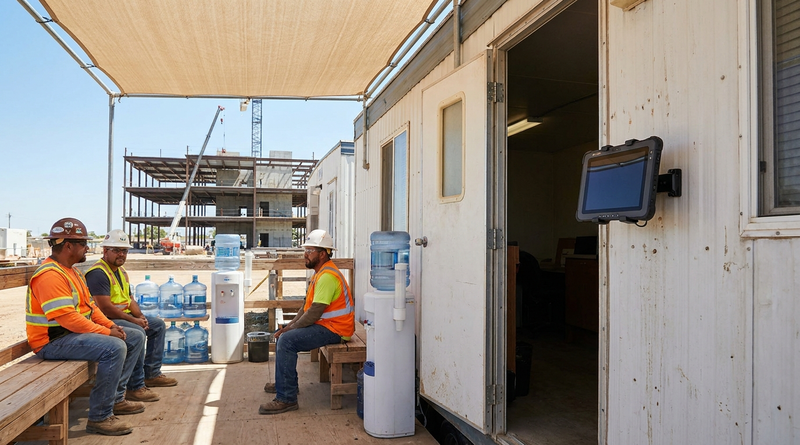
State heat rules in California, Washington and beyond require cool-down breaks that payroll must be able to prove. Learn how UKG Ready and UKG Pro WFM track recovery periods, and how CloudApper AI TimeClock captures them on an affordable jobsite tablet that works offline.
October 15, 2026
PUMP Act Lactation Breaks in UKG: Tracking Them Without Breaking Meal Rules
Lactation breaks protected by the PUMP Act often show up as meal break exceptions in UKG. Learn what federal law requires, how to configure UKG Ready and UKG Pro WFM pay codes, and how CloudApper AI TimeClock records these breaks privately on an affordable tablet clock.
October 14, 2026
Enforcing Minor Work Hour Limits at the UKG Time Clock
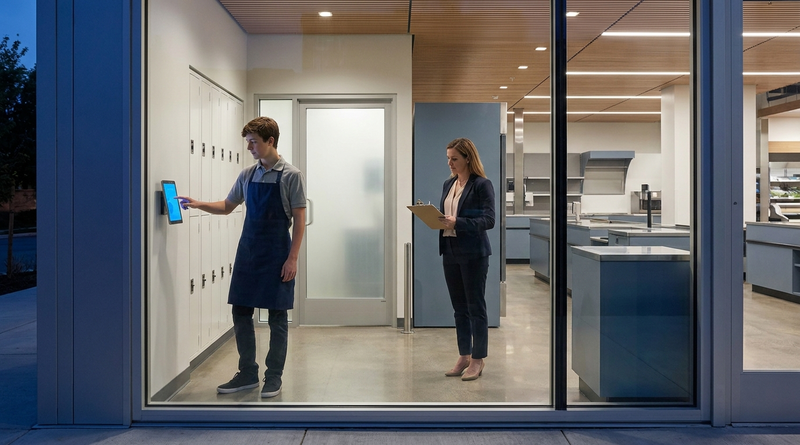
Child labor hour limits are usually built into UKG schedules, but violations happen at the punch. Learn the federal rules for 14 to 17 year olds, how UKG Pro WFM and UKG Ready handle minor rules, and how CloudApper AI TimeClock adds age-based checks on an affordable tablet clock.