Discover how to use an iPad as a UKG time clock with CloudApper AI TimeClock. This affordable solution offers facial recognition, offline punches, GPS location stamping, employee self-service features, and real-time UKG integration. See practical examples of how warehousing, retail, hospitality, and fuel stations are successfully deploying iPad-based time clocks for improved accuracy and efficiency.


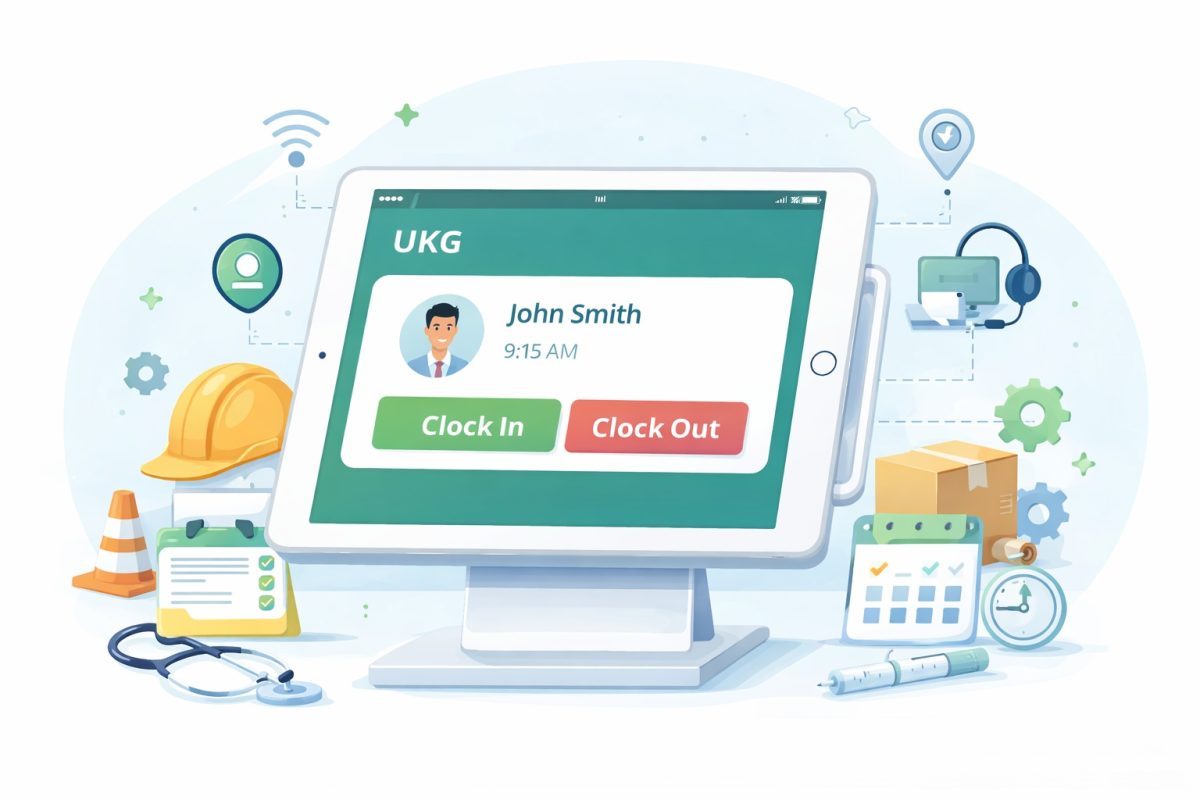
Table of Contents
- TL;DR
- Why Organizations Are Replacing Dedicated Terminals with iPads
- What You Get: Features of an iPad-Based UKG Time Clock
- How to Set Up an iPad as a UKG Time Clock
An iPad can serve as a UKG time clock when it runs a UKG-integrated app such as CloudApper AI TimeClock, which handles punches, job transfers and employee self-service while UKG stays the system of record. It is worth a serious look if your organization runs UKG (formerly Kronos) and is planning a hardware refresh, or is opening new locations and doesn’t want to wait weeks for dedicated terminals to arrive.
TL;DR
Turn any standard iPad into a powerful, AI-enhanced UKG time clock with CloudApper AI TimeClock. Enjoy fast setup, multiple punch methods including facial recognition, offline functionality, GPS stamping, employee self-service, and seamless integration with UKG Pro and UKG Ready — delivering cost-effective, reliable time tracking across industries like warehousing, retail, hospitality, and fuel retail.

This guide covers everything you need to know: how iPad time clocks connect to UKG, what biometric and self-service features you get, how to set one up, and how the experience plays out in four specific industries — warehousing, retail, hospitality, and fuel retail — where organizations have already made the switch.
| At a glance | What it means for UKG users |
| ~60–70% lower | Cost of iPad kiosk vs. proprietary biometric time clock hardware |
| < 1 hour | Typical setup time per device once CloudApper is configured in UKG |
| 99.9% uptime | Offline punch capability means clock-ins still record during network outages |
| 4 industries | Warehousing, retail, hospitality, and fuel retail covered in this guide |
Why Organizations Are Replacing Dedicated Terminals with iPads
Proprietary time clock hardware has always had the same problems: high unit cost, long lead times, limited configurability, and a repair process that involves shipping a device back to the manufacturer and waiting. When a terminal breaks on a Friday night in a distribution center, that’s a real operational problem.
iPads solve most of these pain points without giving up much. Modern iPad kiosks with CloudApper’s UKG integration support facial recognition, fingerprint biometrics, PIN entry, QR code punch-in, and employee self-service actions — everything a dedicated terminal does, on hardware you can replace at any Apple Store. If a device breaks, you swap it, sign in, and you’re back in 20 minutes.
The UKG integration piece is what makes this practical at scale. CloudApper’s time clock app connects directly to your UKG Pro or UKG Ready instance, so punches flow into your existing timekeeping rules, schedules, and payroll workflows without any middleware or manual export.
| What “biometric” means in this context?
iPad time clocks can use facial recognition (camera-based) or fingerprint scanning (with an attached reader). Both methods tie to a specific employee’s UKG profile and log the punch timestamp, location, and — optionally — a photo. This eliminates buddy punching without requiring proprietary hardware. |
What You Get: Features of an iPad-Based UKG Time Clock
The feature set varies slightly depending on your CloudApper configuration, but a typical iPad time clock deployment includes:
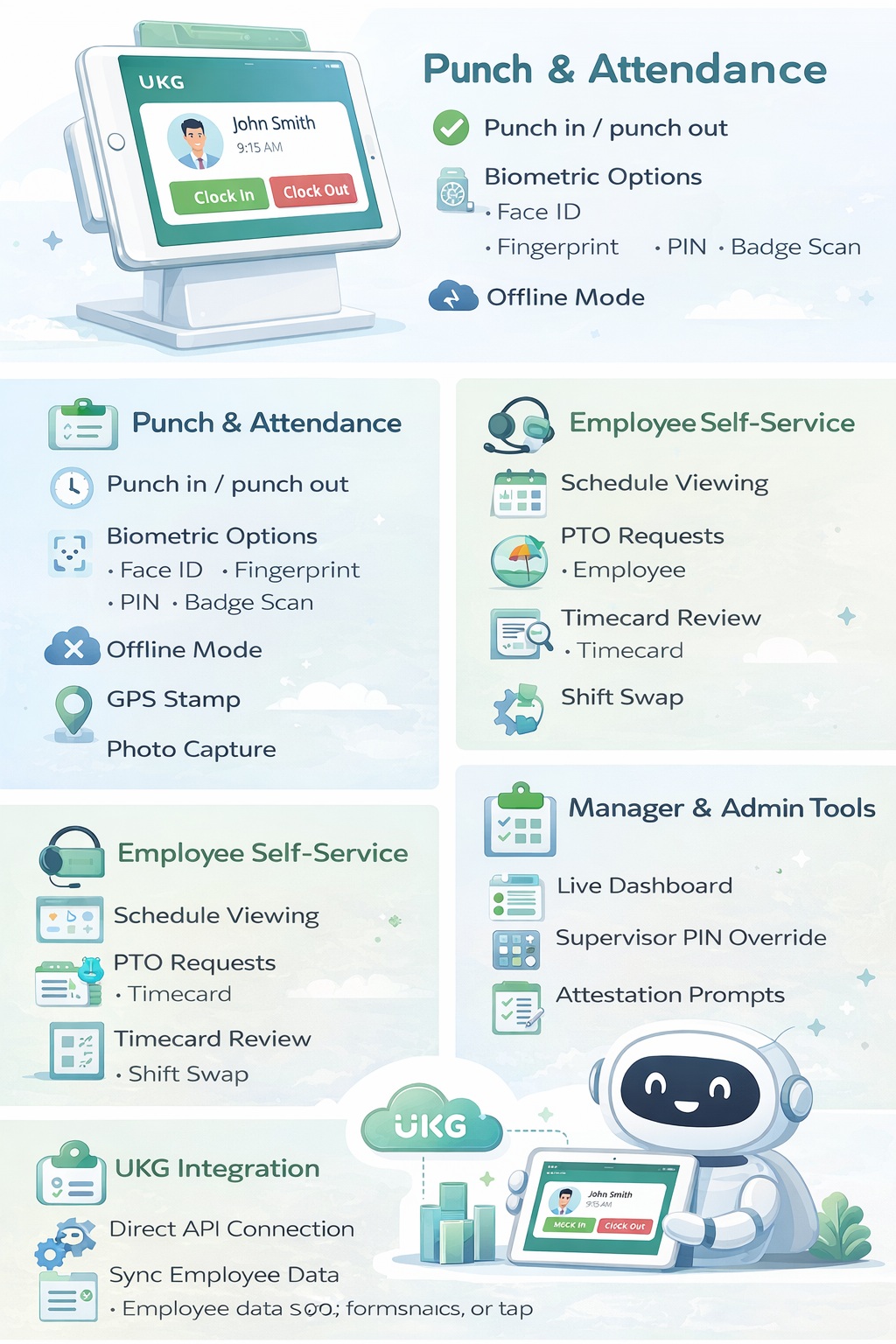
Punch in / punch out
- Facial recognition, fingerprint, PIN, or badge scan — configurable per site or role
- Offline mode: punches queue locally and sync to UKG when connectivity is restored
- GPS stamp on each punch for multi-site accountability
- Photo capture on punch-in to support buddy punch prevention
Employee self-service at the clock
- Schedule viewing — employees see their upcoming shifts without involving a manager
- PTO balance inquiry and request submission directly from the kiosk
- Timecard review — employees can see their punches for the current pay period
- Shift swap request initiation from the device
Manager and admin tools
- Real-time dashboard of who’s clocked in, by department or location
- Override and manual punch correction from a supervisor PIN
- Attestation prompts — employees confirm breaks taken, meals waived, or tip amounts at punch-out
- Alert triggers for missed punches, early clock-ins, or overtime thresholds
UKG integration specifics
- Direct API connection to UKG Pro Workforce Management and UKG Ready
- Punches respect your existing pay rules, rounding rules, and overtime calculations
- Employee data (names, schedules, pay codes) sync from UKG — no duplicate entry
- Works with UKG’s accrual engine for PTO requests submitted at the kiosk
How to Set Up an iPad as a UKG Time Clock
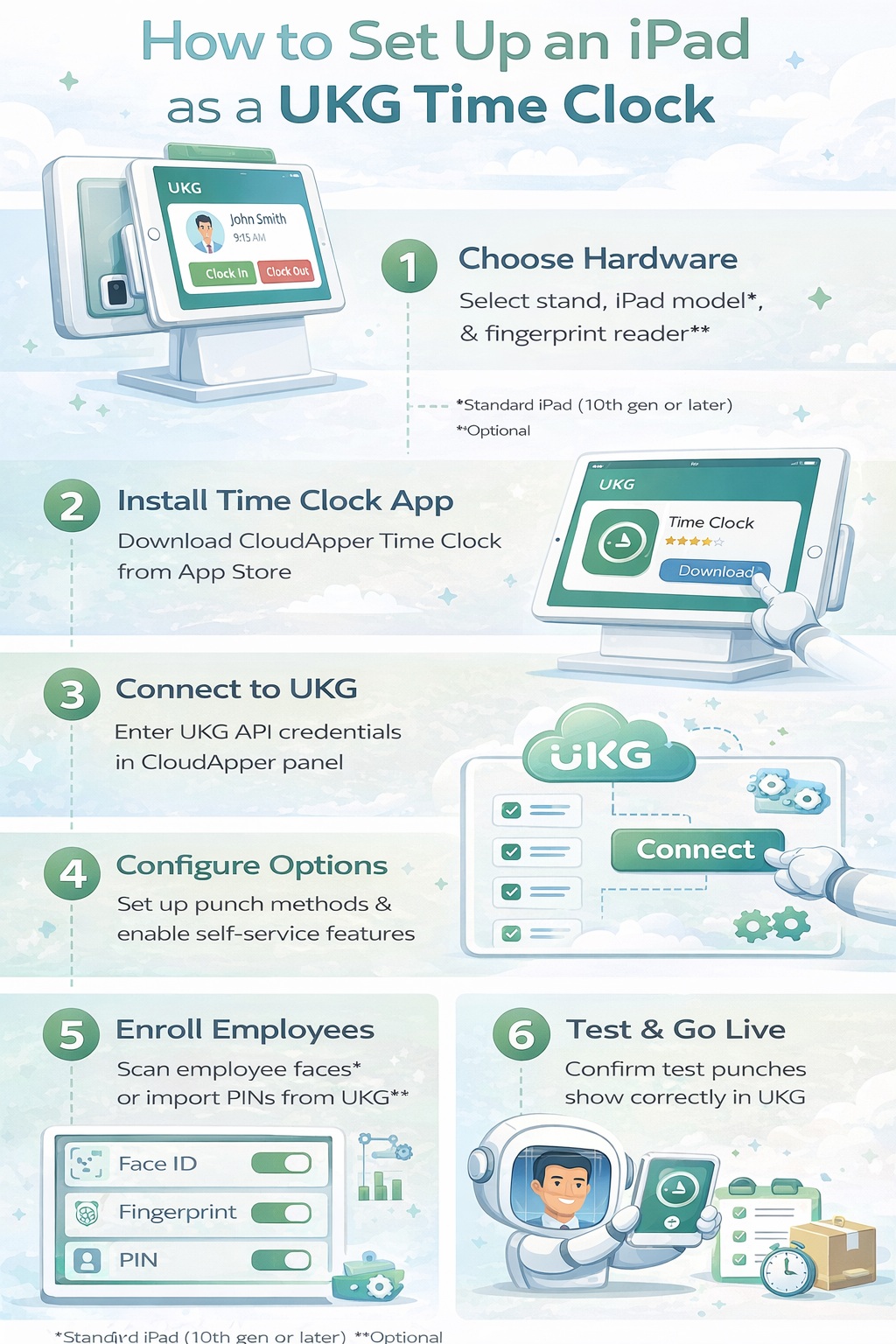
- Choose your hardware configuration: A standard iPad (10th gen or later) works for facial recognition and PIN. Add a supported fingerprint reader if you need physical biometric verification. Mount options range from wall-mounted enclosures to countertop stands — choose based on traffic flow at each site.
- Install CloudApper Time Clock on the iPad: Download from the App Store and put the device in kiosk mode (Guided Access or an MDM profile) so employees can only access the clock interface.
- Connect to your UKG instance: Enter your UKG API credentials in the CloudApper admin panel. The app pulls your employee roster, schedules, and pay codes automatically. Initial sync typically takes a few minutes depending on workforce size.
- Configure punch methods and self-service options: Choose which authentication methods are active at each device. Enable or disable self-service features (schedule view, PTO requests, timecard review) based on what you want employees to access at the clock.
- Enroll employees: For facial recognition, employees do a one-time scan at enrollment — takes about 30 seconds per person. For PIN-only setups, employee PINs import from UKG automatically.
- Test and go live: Run a handful of test punches and confirm they appear correctly in UKG with the right pay codes and timestamps. Most deployments of a UKG time clock on a standard iPad go live within a day of physical installation.
How It Works by Industry
The core setup is the same regardless of where you deploy. What changes is how you configure the device for your specific environment — traffic patterns, compliance needs, physical conditions, and the self-service features your workforce actually uses. Here’s what that looks like across four industries that have deployed iPad-based UKG time clocks.
▌ Warehousing & Distribution
Distribution centers have a few characteristics that make traditional time clocks difficult: high employee volume at shift change, physically spread-out facilities, and workers whose hands may be dirty or gloved when they need to punch in. iPad kiosks address each of these.
Facial recognition is the preferred punch method in most warehouse deployments — it works without the employee touching anything, which matters when someone just came off a pick line. Multiple kiosk stations at entrances and break room exits handle shift-change volume without bottlenecks.
- Deploy multiple kiosks at facility entrances and break areas to handle high-volume shift changes without queuing
- Use facial recognition as primary punch method — gloves and dirty hands make fingerprint and PIN unreliable
- Enable GPS stamping to confirm punches are happening on-site across a large footprint
- Configure department transfer punches for workers who move between warehouse zones with different pay codes
- Offline mode is especially valuable in facilities with spotty WiFi coverage in refrigerated or remote areas
▌ Retail
Retail has a different challenge: many locations, seasonal volume swings, and a workforce that’s often part-time with variable schedules. An iPad kiosk at each location connects to the same central UKG instance, so managers can see attendance across all stores from one dashboard.
The self-service features get used heavily in retail. Employees checking their schedule before a shift, requesting a day off, or reviewing their hours for the week — all of that happens at the clock, which means fewer calls and texts to managers on their days off.
- One kiosk per location ties into your central UKG instance — no location-specific configuration needed beyond device setup
- Schedule view at the clock reduces manager interruptions for shift questions
- Seasonal workforce enrollment is fast — PIN setup imports automatically from UKG for new hires
- Enable shift swap requests at the device to reduce last-minute no-show impact
- Attestation prompts at punch-out handle meal break compliance requirements in California and other regulated states
▌ Hospitality
Hotels, restaurants, and venues deal with a combination of issues that make time tracking complicated: tipped employees, highly variable shift start times, multiple departments under one roof, and compliance requirements around overtime and breaks that vary by state.
iPad time clocks handle the tipped employee problem well. At punch-out, the device prompts the employee to attest to their tip amount, which flows directly into UKG for payroll processing. This replaces paper tip logs and the manual entry that comes with them.
- Tip attestation at punch-out captures declared tips and writes them to UKG automatically — eliminates paper logs
- Department transfer punches handle employees who work front desk in the morning and banquets in the evening under different pay codes
- Meal break attestation prompts satisfy state compliance requirements without manager intervention
- Facial recognition works well in hospitality — no employee is touching a shared surface before handling food or interacting with guests
- Schedule view helps part-time staff who work irregular hours confirm their next shift without calling in
▌ Fuel Retail & Petrol Stations
Fuel retail has the most demanding physical environment of any iPad time clock deployment: outdoor or semi-outdoor locations, temperature extremes, and employees who may not have easy access to an indoor terminal during a shift.
The solution most petrol retailers have landed on is an iPad in a ruggedized enclosure at the site office or indoor kiosk point, with cellular connectivity as a backup to WiFi. The offline punch queue is particularly important here — if connectivity drops during a busy fueling period, punches still record and sync when the connection restores.
- Mount in a ruggedized enclosure rated for the temperature range at your sites — purpose-built iPad mounts exist for commercial and semi-outdoor use
- Configure cellular data as a connectivity fallback for sites where WiFi coverage is unreliable
- Offline punch queue ensures no data loss during network outages — critical for remote or rural fuel sites
- PIN or badge scan works better than facial recognition in outdoor environments with variable lighting
- Multi-site dashboard in UKG gives regional managers real-time attendance visibility across all locations from one view
Common Questions
Does the iPad time clock work if the internet goes down?
Yes. CloudApper’s time clock stores punches locally on the device when the network is unavailable, then syncs them to UKG automatically when connectivity is restored. The sync happens in the background — employees and managers don’t need to do anything. Punches are timestamped at the time they occurred, not the time they synced.
What happens if an iPad breaks or is damaged?
That’s the main operational advantage over proprietary hardware. Replacement iPads are available same-day from any Apple Store or authorized retailer. Once you install CloudApper and sign in with your admin credentials, the device pulls your configuration and employee data from UKG automatically. You’re back in service in under an hour, compared to days or weeks waiting for a proprietary terminal replacement.
Can employees use the iPad time clock for anything beyond punching in?
Yes — and most organizations enable at least some self-service features because it reduces manager workload. The most commonly enabled options are schedule viewing, PTO balance inquiry, and timecard review. Shift swap requests and PTO submissions are also available but are usually rolled out after the initial deployment is stable.
Is facial recognition accurate enough for a busy shift change?
In practice, yes. The recognition process takes one to two seconds per employee under normal conditions. For high-volume shift changes in warehousing or manufacturing, deploying two or three kiosks at an entrance eliminates queuing even with 50-plus employees clocking in over a short window. Lighting is the main variable — make sure kiosk placement avoids direct backlight from windows or exterior doors.
How does this handle employees who work across multiple departments or locations?
Department and cost center transfers are configured in UKG and available at the kiosk as a punch option. An employee starting their shift in one department and transferring mid-day punches the transfer at the device, which writes the new pay code and timestamp to UKG. For employees who work across locations, they use whichever kiosk is at their current site — the UKG integration means their record is updated regardless of which device they use.
What MDM or device management do we need?
Any standard MDM solution works — Jamf, Microsoft Intune, Apple Business Manager. You configure the iPad in Single App Mode (or use Guided Access for smaller deployments) so the device only runs the CloudApper kiosk app. MDM also lets you push updates, monitor device status, and remotely wipe a lost or stolen device. If you don’t already have an MDM solution, CloudApper can advise on setup as part of the implementation.
Ready to replace your time clock hardware?
CloudApper’s iPad time clock integrates directly with UKG Pro and UKG Ready — no middleware, no manual exports, no proprietary hardware lock-in. Whether you’re deploying at one site or two hundred, setup takes hours, not weeks. Talk to our team about what an iPad-based deployment looks like for your environment.


October 19, 2026
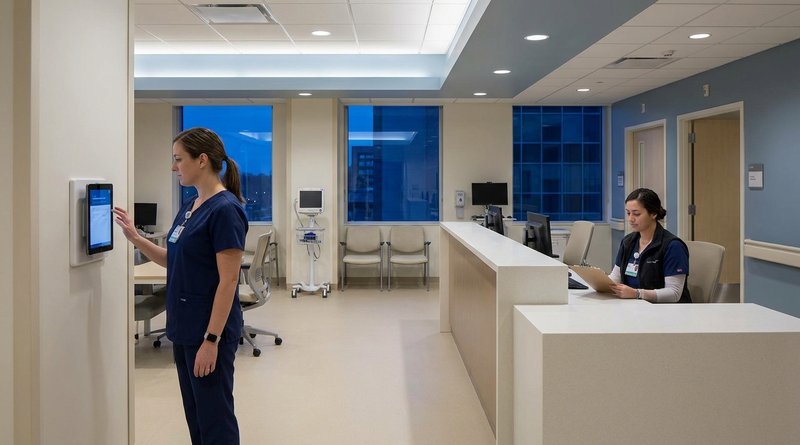
Nurse Mandatory Overtime Limits in UKG: Documenting Voluntary Overtime at Clock-Out
New York, Pennsylvania and Washington restrict mandatory overtime for nurses, which makes documented consent the key record. Learn how UKG Pro WFM and UKG Ready separate voluntary and mandated overtime, and how CloudApper AI TimeClock captures consent on an affordable unit tablet.
October 16, 2026
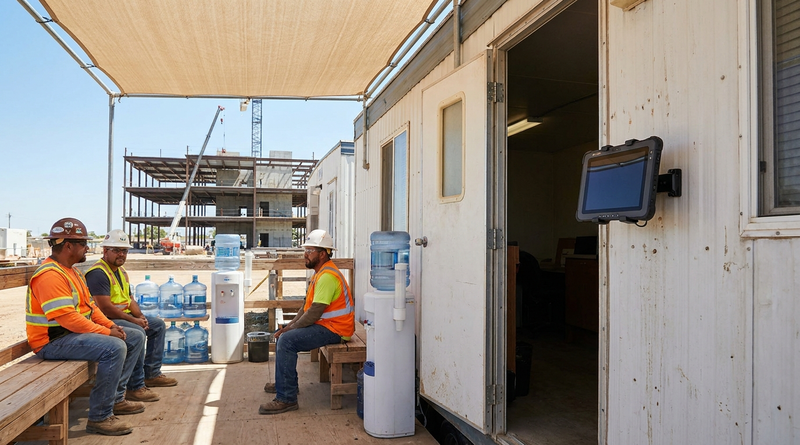
Heat Illness Recovery Breaks in UKG for Construction and Logistics Crews
State heat rules in California, Washington and beyond require cool-down breaks that payroll must be able to prove. Learn how UKG Ready and UKG Pro WFM track recovery periods, and how CloudApper AI TimeClock captures them on an affordable jobsite tablet that works offline.
October 15, 2026
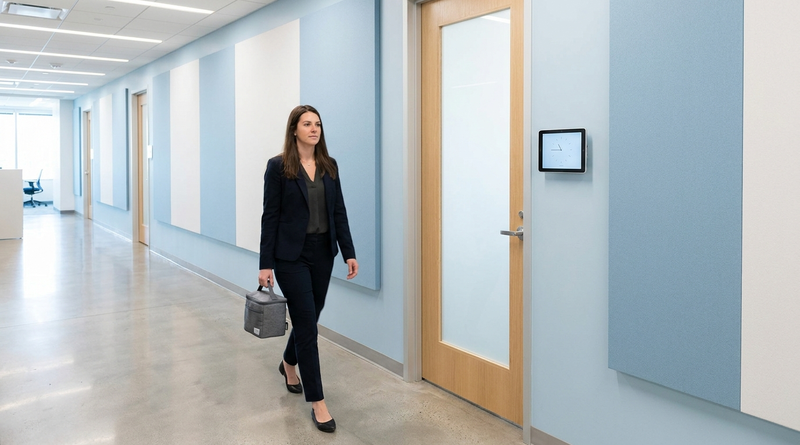
PUMP Act Lactation Breaks in UKG: Tracking Them Without Breaking Meal Rules
Lactation breaks protected by the PUMP Act often show up as meal break exceptions in UKG. Learn what federal law requires, how to configure UKG Ready and UKG Pro WFM pay codes, and how CloudApper AI TimeClock records these breaks privately on an affordable tablet clock.
October 14, 2026
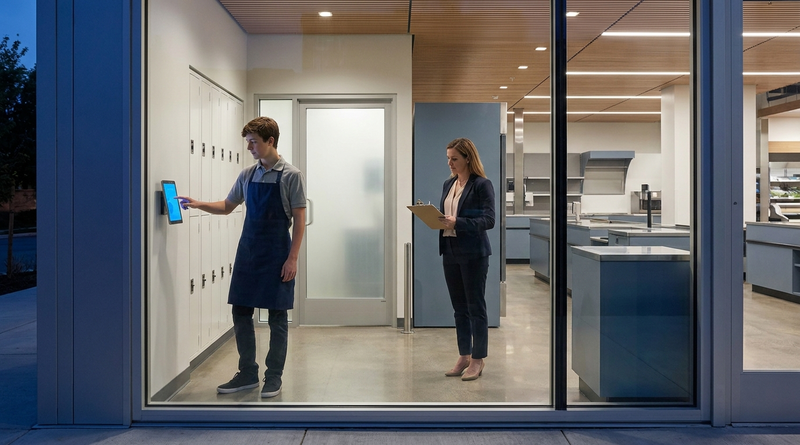
Enforcing Minor Work Hour Limits at the UKG Time Clock
Child labor hour limits are usually built into UKG schedules, but violations happen at the punch. Learn the federal rules for 14 to 17 year olds, how UKG Pro WFM and UKG Ready handle minor rules, and how CloudApper AI TimeClock adds age-based checks on an affordable tablet clock.