Hourly staff on basic UKG logins and managers on SSO can share one tablet time clock without login mix-ups. This guide explains each login type in plain English, compares three shared-tablet setups and shows how hrPad by CloudApper AI makes it work.

Table of Contents
- SSO, basic and federated logins in UKG: what each one means
- Why SSO and shared tablets don’t mix
- How UKG Pro WFM handles the two login types
- Three ways to set up a shared tablet
- The simple fix: the tablet and the person prove who they are separately
- Where SSO still belongs
- Rollout checklist: who owns what
- How hrPad by CloudApper AI runs one time clock for every login type
- See hrPad handle your own shift change
Replacing old wall-mounted time clocks with tablets sounds simple. Then someone asks how people will log in. Hourly staff use a regular UKG username and password. Salaried staff and managers log in through the company’s single sign-on (SSO). During the pilot, one tablet gets passed around the break room, and the second person in line finds herself logged in as the first.
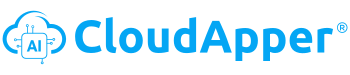
The fix is to stop treating a shared tablet like a personal device. A shared tablet works well as a UKG time clock when the tablet has its own trusted connection to UKG and each employee proves who they are at the moment they clock in, with a face scan, badge, QR code, NFC tag, or PIN and photo. Nobody types a password and nobody logs in, so it no longer matters which kind of UKG login an employee has.
That’s how hrPad by CloudApper AI works. hrPad turns the iPads and Android tablets you already own into a self-service kiosk for UKG Pro, UKG Pro WFM and UKG Ready. Employees identify themselves at the tablet with a face scan, badge or QR code, NFC, or PIN and photo. If your IT team wants those identities tied to your company directory, hrPad can also connect to identity providers like Microsoft Entra ID (formerly Azure AD), Okta and Google Workspace. Either way, everyone clocks in at the same tablet, the same way.
Below, we explain the problem in plain terms, show the three setups most organizations consider, and give HR, IT and operations a shared checklist for rolling out one time clock for every login type.
SSO, basic and federated logins in UKG: what each one means
If you work in HR or operations, some of the IT vocabulary around this topic can get in the way. Here’s what the key terms mean.
| Term | What it means |
|---|---|
| Single sign-on (SSO) | One company login that opens many work apps, so people don’t need a separate password for each one. |
| Basic login | A username and password stored inside UKG itself. Common for hourly employees. |
| Federated login | A login that UKG hands off to your company’s sign-in system. This is what makes SSO work in UKG. |
| Identity provider | The system that checks who someone is when they sign in, such as Microsoft Entra ID or Okta. |
| MDM (mobile device management) | The software IT uses to set up, lock down and manage company phones and tablets. |
| Kiosk mode | A setting that locks a tablet to one app, so it can’t be used for anything else. |
Why SSO and shared tablets don’t mix
SSO is designed for one person using one device. You log in once in the morning, and every work app trusts you for the rest of the day. That’s exactly what you want on a manager’s laptop.
On a tablet that dozens of people use every shift, that same convenience causes problems. If one person’s login stays open, the next person can end up clocking in under the wrong name, and that error flows straight into payroll. In pilots, a few issues tend to come up again and again:
- A login stays open after an employee walks away, so the next person lands in the wrong account.
- Security codes are sent to personal phones that hourly staff may not carry on the floor, or may not be expected to use for work.
- Typing a full company username and password while coworkers wait in line slows down every shift change and creates a steady stream of password reset tickets for IT.
- Seasonal and temporary workers often don’t have a company login at all.
None of this means SSO is a bad choice. It’s the right way for most people to reach UKG from their own devices. A shared time clock just has a different job: identify the right person in a few seconds, record the punch, and get ready for the next person.
How UKG Pro WFM handles the two login types
UKG Pro Workforce Management (formerly Dimensions) supports both login types side by side. According to UKG’s authentication documentation, basic users have their password stored in UKG Pro WFM, while federated users sign in through your company’s identity provider. The login type is set for each employee individually, and the two groups use different sign-in pages. UKG also requires multifactor authentication, an extra security code, for manager accounts.
For shared devices, UKG Pro WFM includes its own browser-based kiosk. Based on UKG’s kiosk setup guide, a manager with the right permissions opens the kiosk, employees then clock in or fill out forms on it, and the kiosk logs each employee out automatically after every action. The guide also matches kiosks for federated users to locations that use federated logins, and kiosks for basic users to locations that use basic logins.
That’s a solid built-in option. If your workforce has both login types, the main job is planning: deciding which sites, kiosks and employee groups go with which login type. It’s much easier to work that out in a planning meeting than at 6 a.m. with a line at the clock.
Three ways to set up a shared tablet
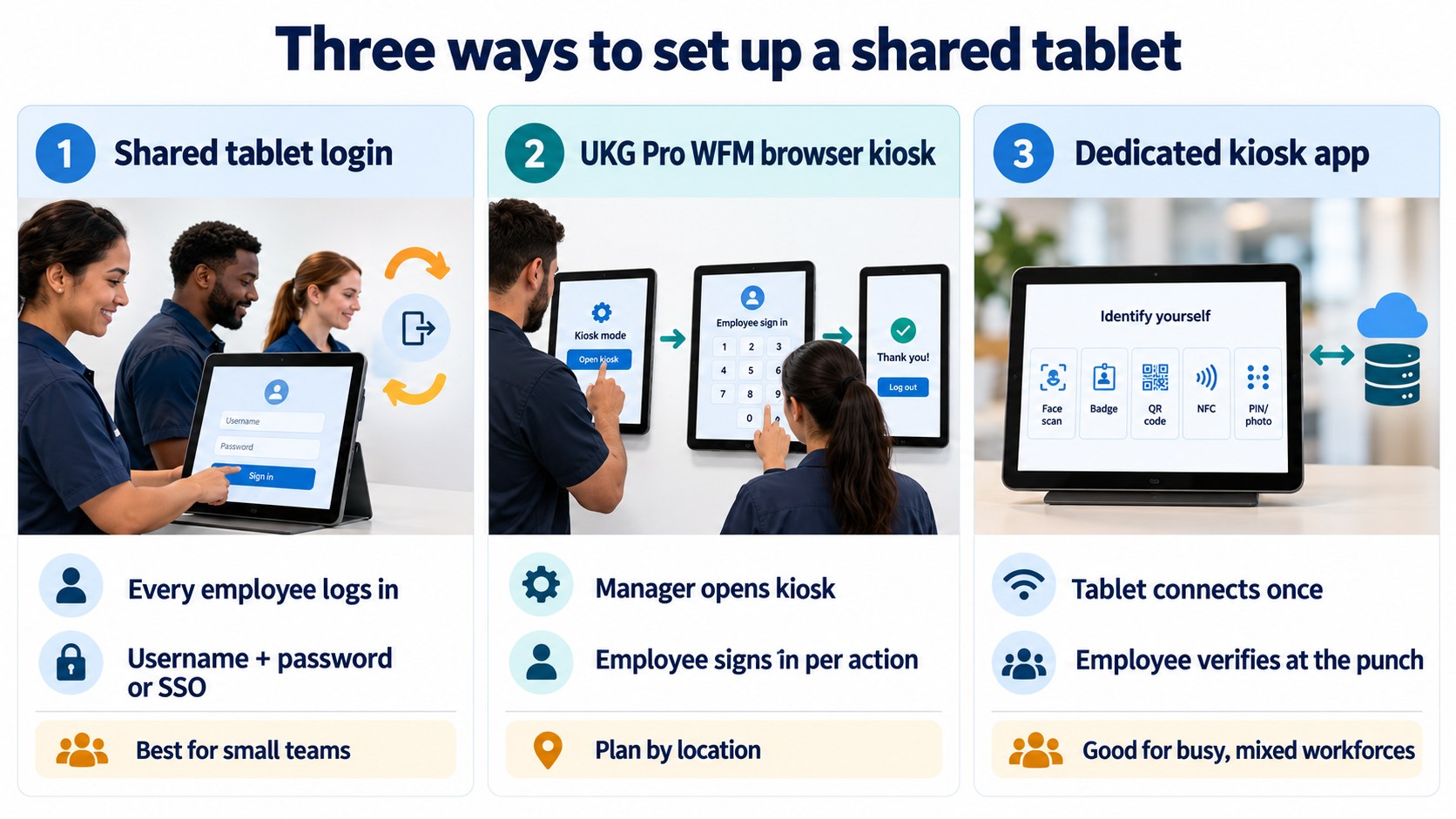
Most HR, IT and operations teams end up comparing three setups.
| Setup | Who logs in | How employees identify themselves | Works for mixed login types? | Best for |
|---|---|---|---|---|
| Each employee logs in on a shared tablet (browser or mobile app) | Every employee, every time | UKG username and password, or SSO | Each group logs in its own way, and logins must be cleared between people | Occasional use by a small team |
| UKG Pro WFM browser kiosk | A manager opens the kiosk | Employee signs in on the kiosk and is logged out after each action | Yes, with kiosks planned by location and login type | Sites that want UKG’s built-in option and can plan by location |
| Dedicated kiosk app connected to UKG | The tablet, once, through a secure connection | Face scan, badge, QR code, NFC, or PIN and photo | Yes, login type doesn’t matter at the clock | Busy sites, mixed workforces, and teams that want self-service at the clock |
The simple fix: the tablet and the person prove who they are separately
Most shared-tablet login problems go away once you split identity into two parts: the tablet proves it’s a trusted company device, and the employee proves who they are at the punch.
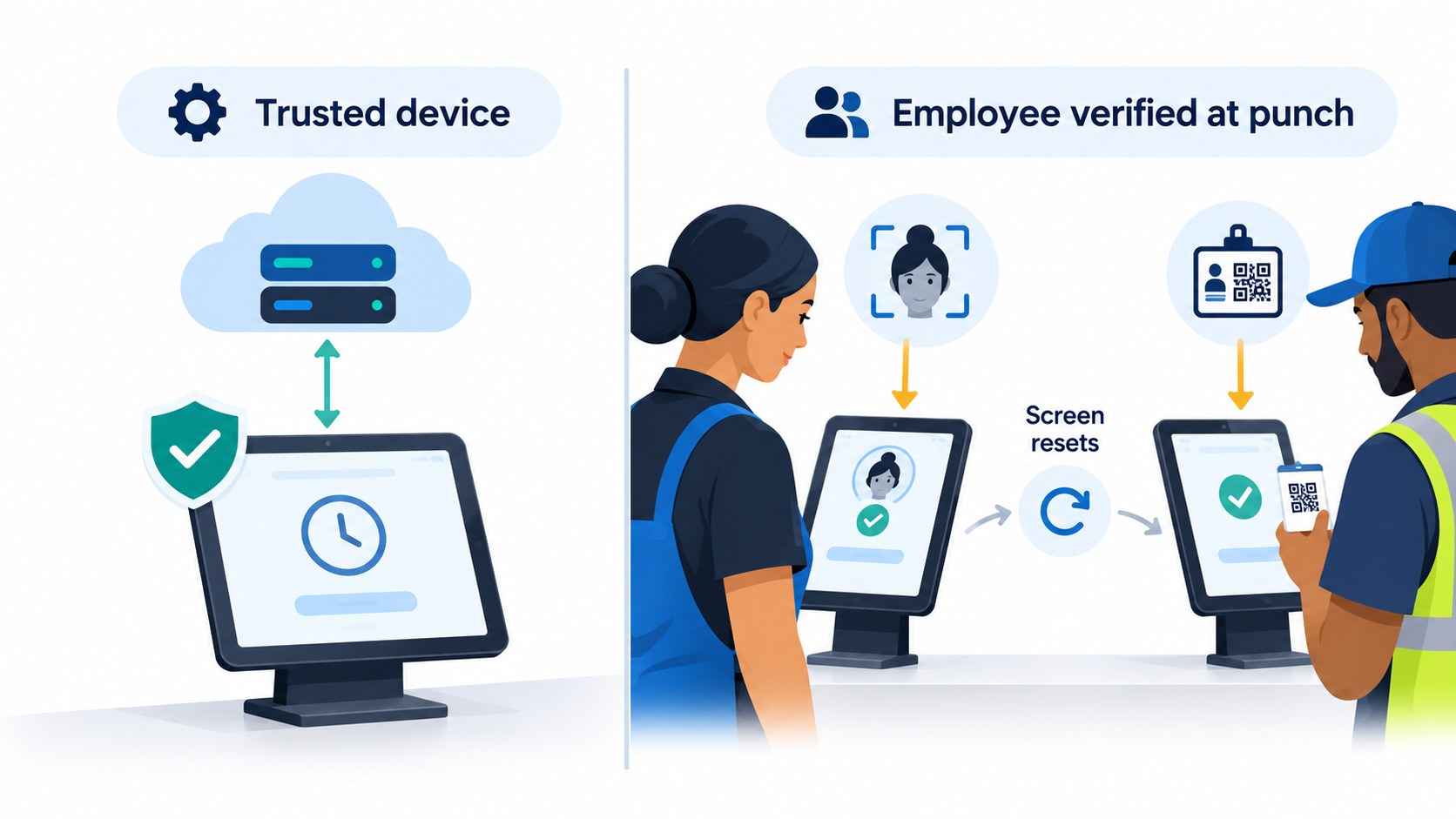
The tablet side belongs to IT. The tablet is set up in your device management software, such as Microsoft Intune or Workspace ONE, locked into kiosk mode so it only runs the time clock app, and connected to UKG through a secure, limited-access integration. Our IT security review guide lists the questions IT should ask about that connection before signing off.
The employee side is about speed and accuracy. The worker looks at the camera, taps a badge or scans a code, and the punch goes to the right UKG record. Then the screen resets for the next person. Because nobody logged in, there’s nothing left open for the next person to stumble into, and a basic or federated login makes no difference at the clock.
Your SSO setup stays the same. Employees with federated logins keep signing in to UKG through your identity provider on their own laptops and phones for things like timecard reviews, approvals and scheduling. The shared tablet just isn’t where they need to do that.
Where SSO still belongs
Managers and salaried staff do work in UKG that needs their full login, and that work should stay behind your company sign-in and UKG’s security rules. So the real question is which manager tasks need to happen at the shared tablet at all.
Usually it’s a short list, such as approving a job or department transfer for someone in the middle of a shift. For those, the kiosk can ask the manager to identify on the spot and record the approval under the manager’s name. Reviewing timecards, editing schedules and the rest of a manager’s UKG work are better done on their own device.
Rollout checklist: who owns what
A shared time clock touches HR, HRIS, IT and operations, so it helps to agree on owners before the first tablet goes on the wall.
| Step | What to do | Usually owned by |
|---|---|---|
| 1. Map your login types | List which employee groups use basic logins and which use SSO, and which groups clock in at shared stations. | HRIS |
| 2. Decide what the kiosk does | Clock-ins only, or also breaks, transfers, time-off requests and pay stubs? This shapes how employees identify themselves. | HR and operations |
| 3. Choose how people identify, by site | Face scans give the strongest protection against buddy punching, but some states restrict biometrics. PIN and photo works well in those locations. | HR, with legal |
| 4. Set up and lock the tablets | Enroll tablets in device management, turn on kiosk mode and agree on network setup before they reach the floor. | IT |
| 5. Plan for Wi-Fi outages | Confirm that punches are saved on the tablet and sent to UKG when the connection comes back. | IT and operations |
| 6. Test a real shift change | Put ten people through the tablet in five minutes, including both login types, a new hire and a manager approving a transfer. | Operations and HRIS |
| 7. Pilot one site | Run a full pay period, then compare missed punches and timecard edits against a site still using the old clocks. | HR and payroll |
How hrPad by CloudApper AI runs one time clock for every login type
hrPad by CloudApper AI is built for exactly this situation: one shared tablet, many employees, and a mix of UKG login types. The tablet holds the trusted connection to UKG, and each employee identifies themselves at the punch. If your IT team wants kiosk identities linked to your company directory, hrPad connects to identity providers like Microsoft Entra ID, Okta and Google Workspace. If not, a UKG employee record is all an employee needs. Everyone uses the same tablet in the same way.
Here’s how hrPad handles the issues that usually slow down a shared-tablet rollout.
| Common problem | How hrPad handles it |
|---|---|
| One person’s login carries over to the next | Nobody logs in on the kiosk. Each punch is verified, recorded to the right UKG employee and logged, and the screen resets for the next person. |
| Security codes go to personal phones | Employees identify with a face scan, QR code, barcode, NFC, or PIN and photo, so clocking in doesn’t depend on a phone in someone’s pocket. |
| Slow logins at shift change | A face scan or badge tap replaces typing a username and password while others wait. |
| Seasonal and temporary workers have no company login | New hires can register their face on any enrolled tablet during onboarding, and HR can batch-print QR codes for temporary workers. A UKG employee record is all they need. |
| Some states restrict biometrics | Those sites can use PIN and photo while every other site keeps face scans, all on the same platform. |
| IT needs control of the device | Tablets enroll in your existing device management software with kiosk mode, and the UKG connection uses limited-access credentials with an audit log. |
| Wi-Fi drops in the middle of a shift | Punches are saved on the tablet and sent to UKG when the connection returns. |
Managers get a simple path too. When a transfer has to be approved at the tablet, the manager identifies right there and the approval is recorded with an audit trail. The rest of their UKG work stays behind your SSO on their own devices.
The tablet also does more than record time. At the same kiosk, employees can check their schedules and balances, request time off, view pay stubs, and ask an AI HR assistant questions it answers from your own policy documents. UKG stays your system of record, and your UKG login settings don’t change.
See hrPad handle your own shift change
The quickest way to know whether one shared tablet can serve your whole workforce is to watch it handle a real shift change, with employees from both login groups in line. Contact the CloudApper team to see how hrPad by CloudApper AI would work in your UKG environment, from tablet setup and identification options for each site to what the punch and audit trail look like for every employee.


October 23, 2026
No Tax on Overtime: What It Means for Your UKG Payroll
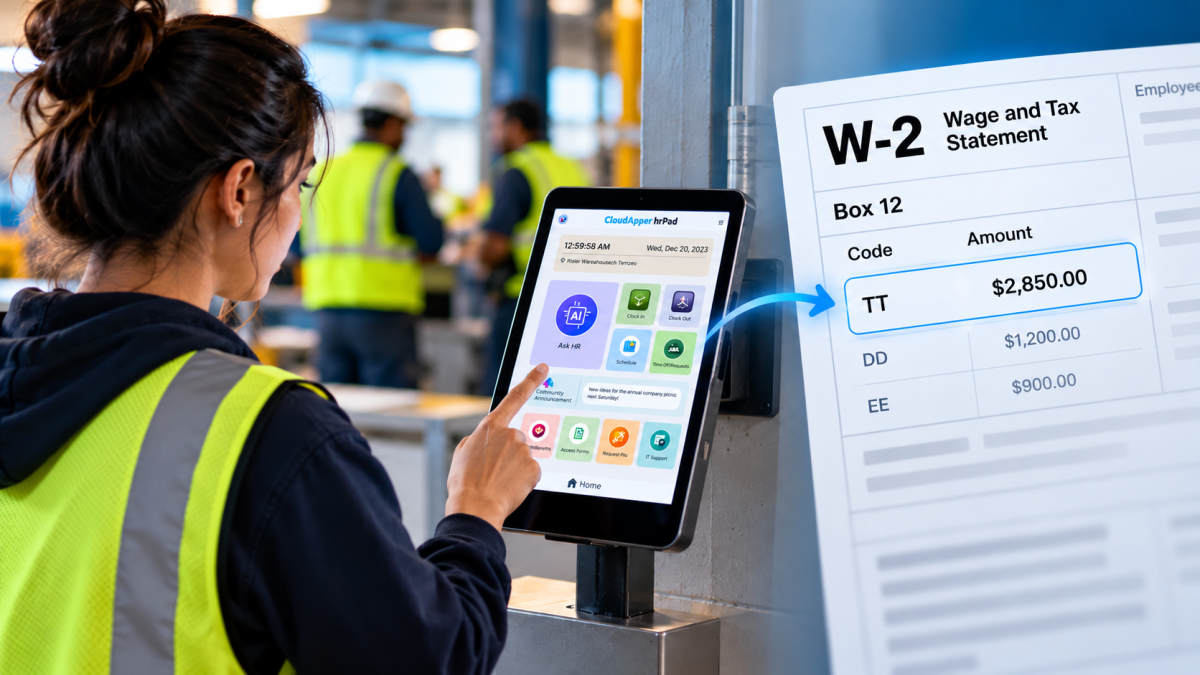
Starting with 2026 wages, employers using UKG must report qualified overtime in W-2 Box 12 (code TT), and only part of the overtime you pay counts. hrPad by CloudApper AI helps capture the details at the time clock.

October 23, 2026
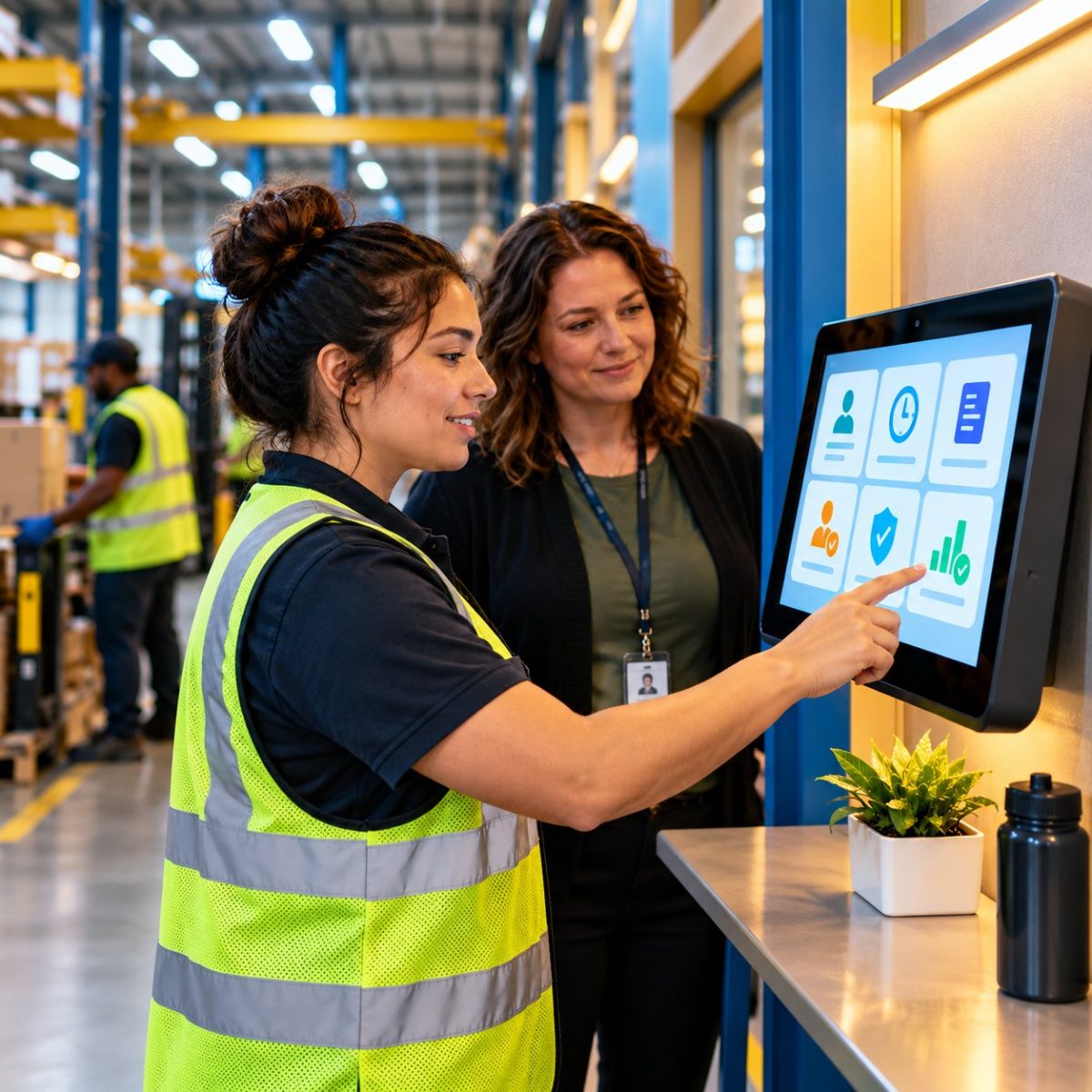
Barcode Labor Tracking on UKG Ready: Two Clocks, One Labor Record, and an ERP-Validated Hierarchy
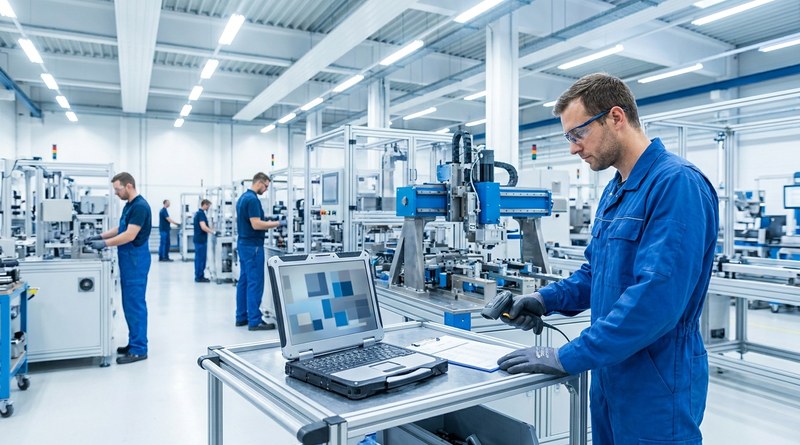
Some plants keep attendance on the clocks at the door and capture job labor at the workstation. This piece looks at that two-clock model on UKG Ready: scan-only capture for gloved operators, work orders validated against the ERP, and how CloudApper adds that layer using the PCs and scanners already on the line.
October 13, 2026
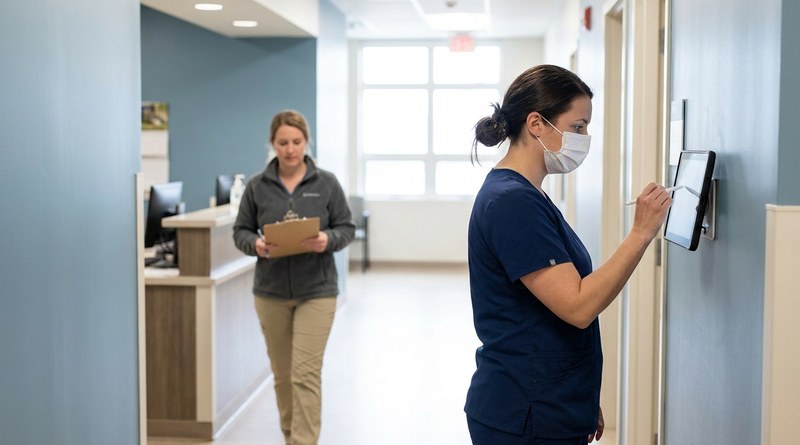
Paperless HR for Rural Hospitals on UKG: Extending One Kiosk to Documents, E-Signatures and Benefits Data
A rural hospital using CloudApper hrPad as its UKG time clock still handled much of HR on paper. Its next step is extending the same kiosk to documents, e-signatures and transfers, with CloudApper iPaaS moving benefits data to providers, all within network rules that block external AI services.
October 5, 2026
Why Is My Paycheck Wrong? Tracing UKG Payroll Errors to Six Upstream Causes
Most UKG payroll questions start upstream of payroll: in employee details, attendance, deductions, approvals, compliance or reconciliation. hrPad by CloudApper AI catches each one at the time clock.