
Editing timecards in UKG Pro ensures payroll accuracy and compliance. Managers and employees can correct punches, add missed entries, or adjust hours via the web or mobile interface. CloudApper AI Tablet enhances this with on-site biometric edits, AI-guided attestations, and instant sync—reducing errors and admin time significantly.




Table of Contents
Managing a large workforce is a balancing act of precision and speed. But even with a powerhouse system like UKG Pro, the reality of daily operations often gets in the way. A missed punch here, an unplanned doctor’s appointment there, or a shift that ran long due to an emergency—these are the “human” moments that turn a clean payroll run into an administrative nightmare. If you’ve ever found yourself staring at a screen on a Friday afternoon wondering how to edit timecards in UKG Pro without causing a compliance ripple effect, you aren’t alone.
Maintaining accurate time records is the cornerstone of payroll integrity and labor law compliance. In this comprehensive guide, we will break down everything you need to know about navigating timecard edits within the UKG ecosystem—from simple clock entries to the complex world of signed-off periods. Furthermore, we’ll explore how modern enterprises are moving beyond manual entry by using CloudApper hrPad to automate these corrections at the source.
TL;DR
UKG Pro allows managers and authorized employees to edit timecards for corrections, missed punches, or approvals. CloudApper AI Tablet streamlines the process by enabling secure, real-time edits directly at the workplace using facial recognition, custom attestations, and automatic sync to UKG Pro—preventing disputes, ensuring compliance, and speeding payroll processing.
The Critical Role of Timecard Accuracy in UKG Pro
In the world of Human Capital Management (HCM), the timecard is more than just a digital log; it is a legal document. For UKG Pro customers, the accuracy of this data dictates everything from overtime calculations to ACA compliance and shift differential payouts.
When a timecard is left uncorrected, the consequences cascade through the organization. Employees receive incorrect paychecks, leading to a dip in morale and a rise in “paycheck friction.” HR teams are forced into “retro-pay” cycles, which are notoriously prone to error. Most importantly, a lack of documented edits can leave an organization vulnerable during Department of Labor (DOL) audits.
Knowing how to efficiently manage these edits is essential, but understanding how to prevent the need for manual edits is where true operational excellence begins.
How to Edit Timecards in UKG Pro: Step-by-Step
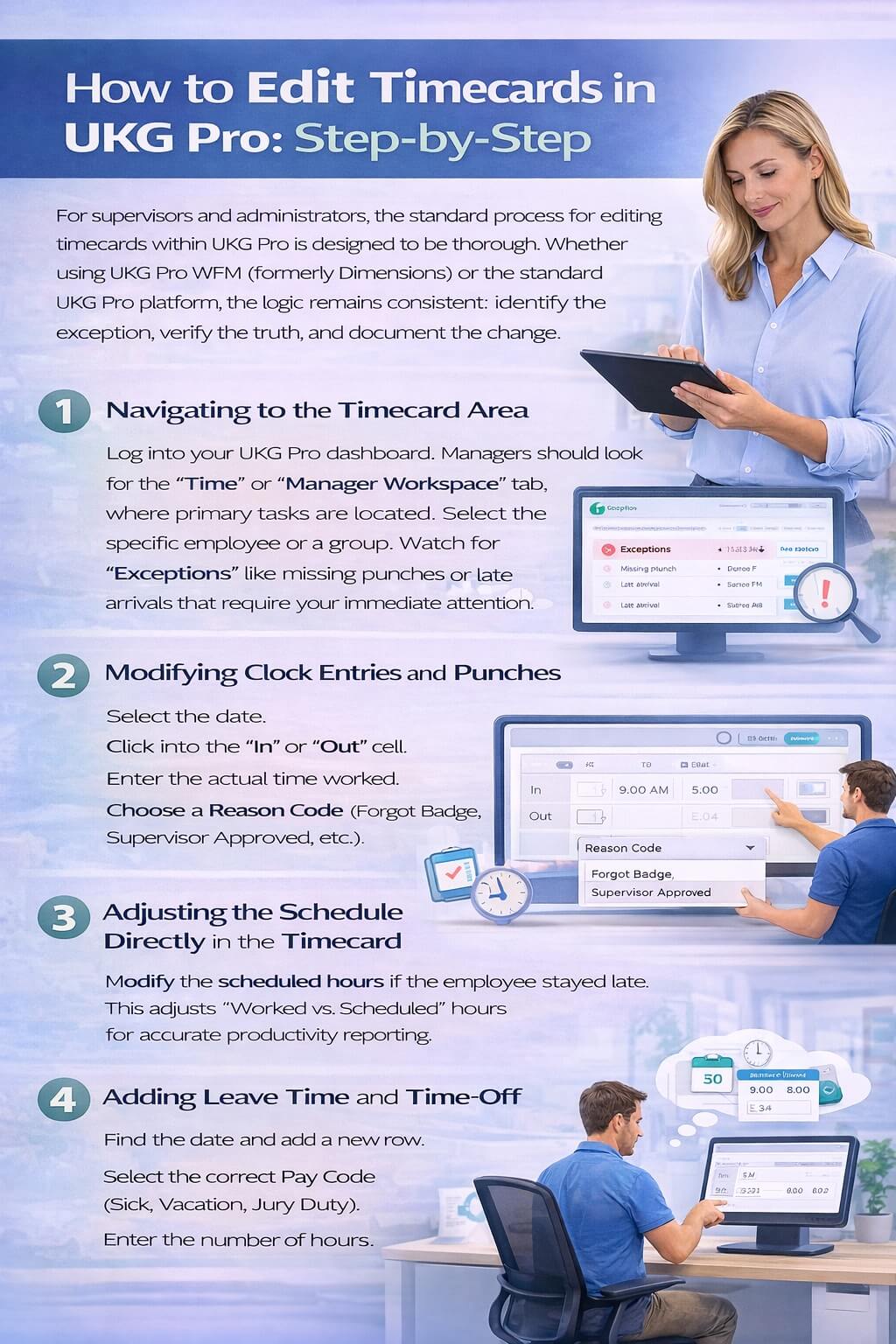
For supervisors and administrators, the standard process for editing timecards within UKG Pro is designed to be thorough. Whether you are using UKG Pro WFM (formerly Dimensions) or the standard UKG Pro platform, the logic remains consistent: identify the exception, verify the truth, and document the change.
1. Navigating to the Timecard Area
To begin, log into your UKG Pro dashboard. Most managers will find their primary tasks under the “Time” or “Manager Workspace” tab. From here, you can select the specific employee or a group of employees. Usually, the system will highlight “Exceptions”—these are the red flags like missing punches or late arrivals that require your immediate attention.
2. Modifying Clock Entries and Punches
If an employee forgot to clock in, you will see a missing punch exception. To fix this:
-
Select the date in question.
-
Click into the “In” or “Out” cell.
-
Enter the actual time worked.
-
It is critical to select a Reason Code. This provides an audit trail explaining why the manual edit was necessary (e.g., “Forgot Badge,” “System Issue,” or “Supervisor Approved”).
3. Adjusting the Schedule Directly in the Timecard
Sometimes the issue isn’t a missing punch, but a schedule deviation. UKG Pro allows managers to adjust the scheduled hours directly from the timecard view. This is useful when an employee stays late to cover a shift. By adjusting the schedule on the timecard, you ensure that the system correctly calculates “Worked vs. Scheduled” hours, which is vital for productivity reporting.
4. Adding Leave Time and Time-Off
One of the most frequent edits involves adding leave time directly into the timecard. If an employee calls out sick but forgets to submit a formal request, or if a bereavement leave needs to be applied retroactively, managers can manually add “Pay Codes.”
-
Search for the date.
-
Add a new row.
-
Select the appropriate Pay Code (Sick, Vacation, Jury Duty).
-
Enter the number of hours. This ensures the employee is paid correctly without having to wait for a separate leave management workflow to catch up.
The Challenge of the “Signed-Off” Timecard
A common point of confusion for UKG Pro users is how to edit a signed-off timecard. Once a pay period is closed and signed off by a manager or payroll admin, the data is typically “locked” to prevent accidental changes that would desync the payroll system.
However, errors are sometimes discovered after the sign-off. To fix these:
-
You must have specific administrative permissions to “Remove Sign-off.”
-
Once the sign-off is removed, the timecard becomes editable again.
-
After making the correction, you must perform a “Recalculate” to ensure all pay rules are reapplied to the new data.
-
Finally, re-apply the sign-off.
Because this process is cumbersome and carries a higher risk of payroll discrepancies, many organizations are looking for ways to ensure timecards are 100% accurate before the sign-off occurs.
Why Manual Edits are an Administrative Bottleneck
While the steps above are straightforward, they are inherently reactive. The manual edit process relies on a manager’s memory or a handwritten note from an employee, both of which are prone to “human error.”
In industries like manufacturing, healthcare, and retail, managers can spend upwards of 20% of their week just fixing timecards. This is time taken away from safety checks, patient care, or customer service. Furthermore, the “Friday Afternoon Scramble” to fix missed punches before the payroll deadline often leads to rushed entries and compliance risks.
CloudApper hrPad: The Modern Way to Manage UKG Pro Timecards
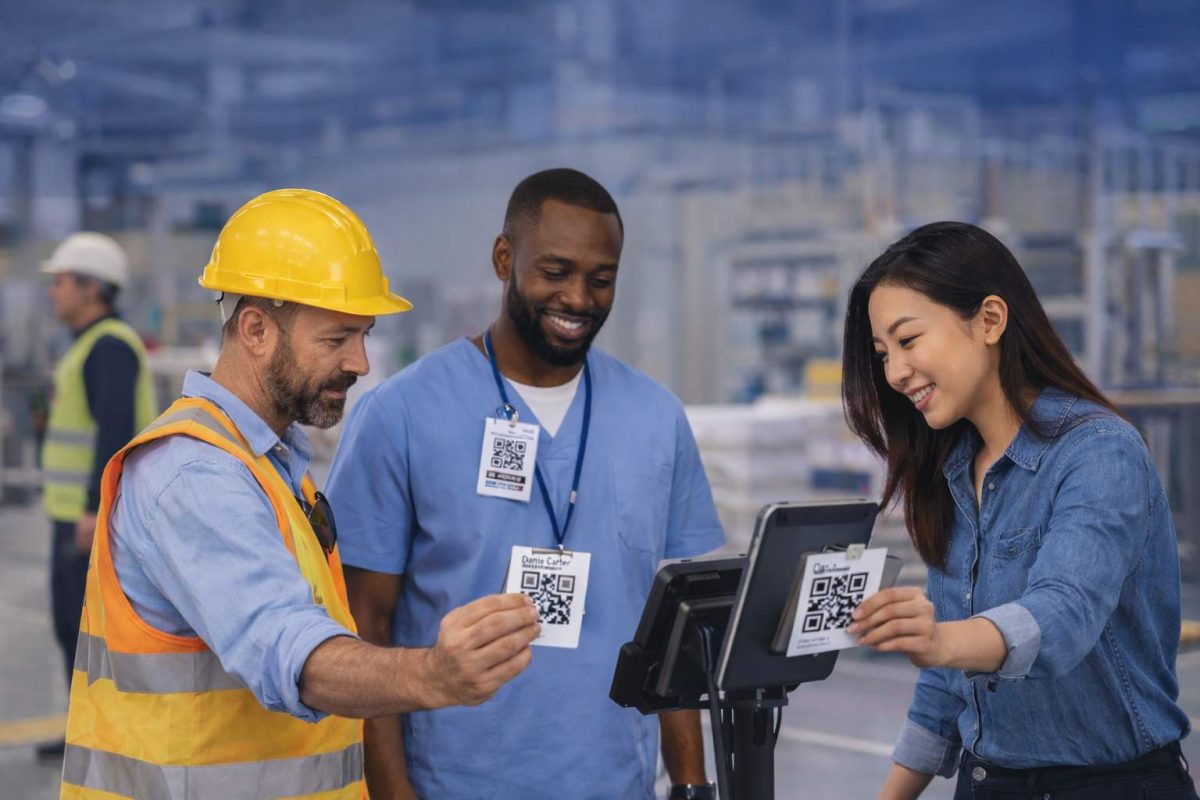
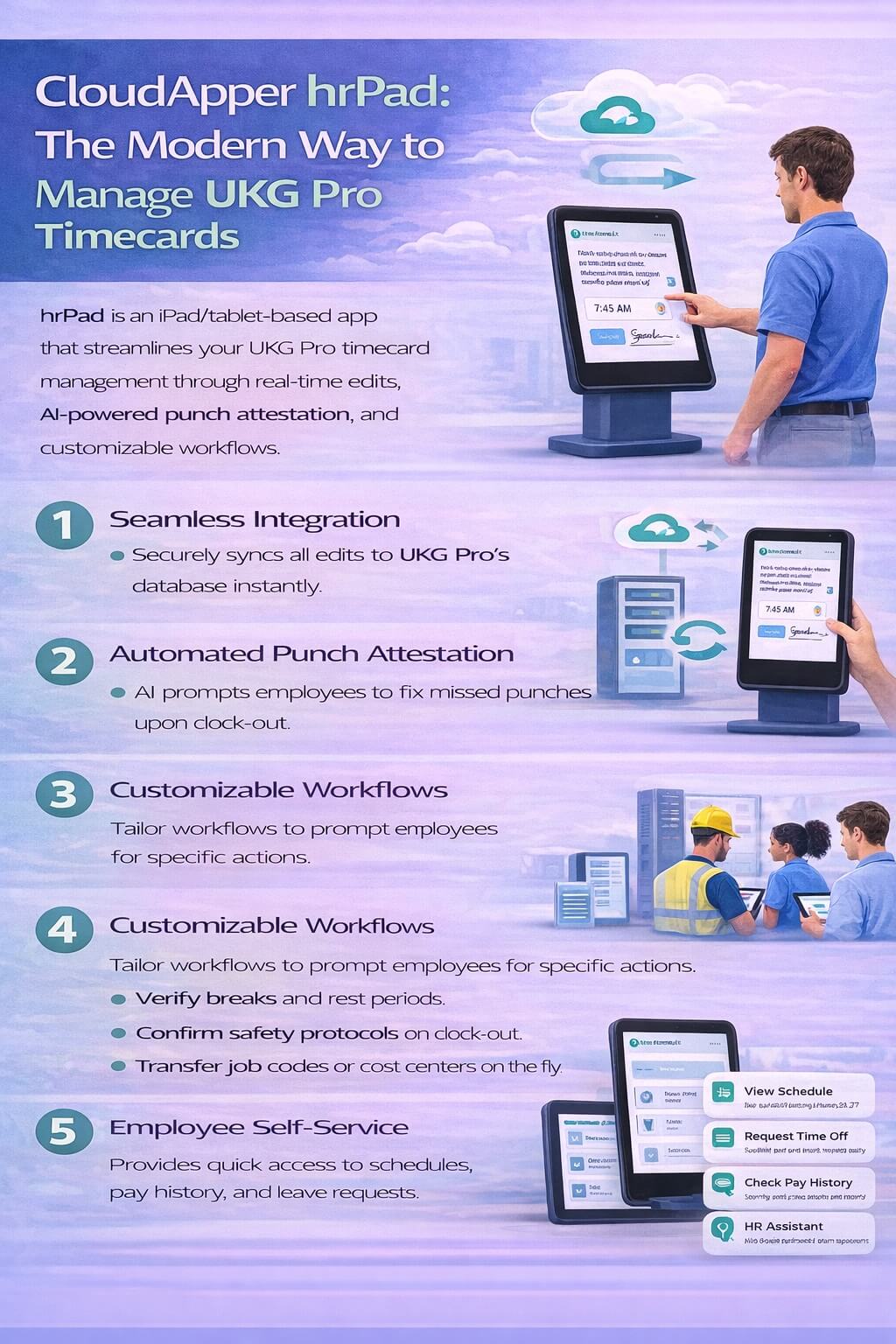
What if you could eliminate the “Friday Scramble” entirely? CloudApper hrPad is a modern, flexible, and highly customizable solution designed to work in perfect harmony with UKG Pro. Instead of waiting for a manager to find an error in the back office, hrPad identifies and fixes timecard issues at the point of entry—on the tablet where employees clock in.
Seamless Integration with UKG Pro
CloudApper hrPad isn’t a separate silo of data. It seamlessly integrates with UKG Pro via secure APIs. This means that when an employee interacts with an hrPad tablet, they are interacting directly with your UKG database in real-time. Any correction made on the tablet is instantly reflected in UKG Pro, providing a “single source of truth” without the manual data entry.
Automated Punch Attestation
The most powerful feature of hrPad is its ability to handle Punch Attestation. Imagine an employee clocks out on a Friday, but forgot to clock in on Tuesday. Normally, this stays as an error until the manager finds it. With hrPad, when that employee clocks out on Friday, the AI-powered tablet recognizes the missing punch from Tuesday.
The tablet can be customized to ask the employee: “Hi Sarah, we noticed you didn’t clock in on Tuesday morning. What time did you arrive?” Sarah enters the time, provides a digital signature or a photo for verification, and the edit is pushed to UKG Pro for manager approval. The error is fixed before Sarah even leaves the building.
Customizable Workflows for Every Industry
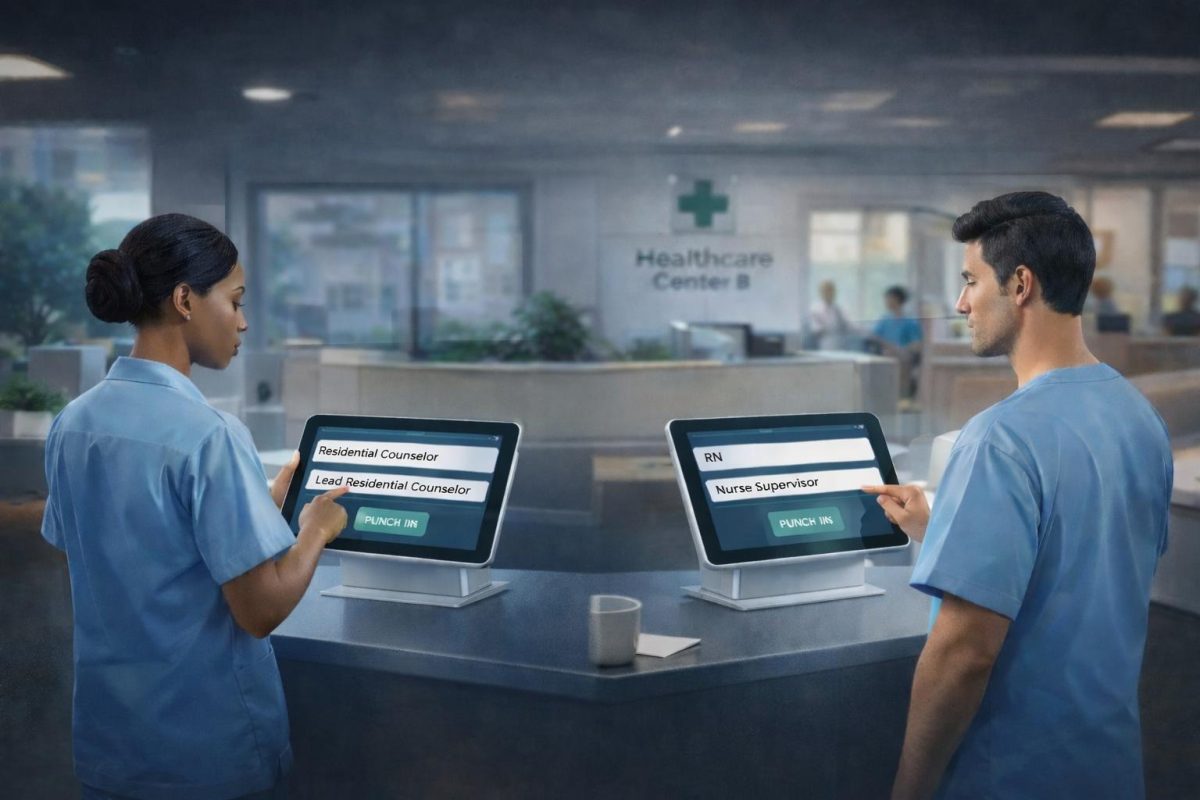
Every organization has unique rules. A manufacturing plant might need a “Safety Attestation” during every clock-out, while a retail store might need employees to verify they took their full 30-minute lunch break to comply with state laws.
CloudApper hrPad is highly customizable. You can build custom workflows that prompt employees to:
-
Verify meal and rest breaks.
-
Attest to workplace safety.
-
Transfer job codes or cost centers on the fly.
-
View their PTO balances and schedules without needing a computer.
Transforming Employee Self-Service (ESS)
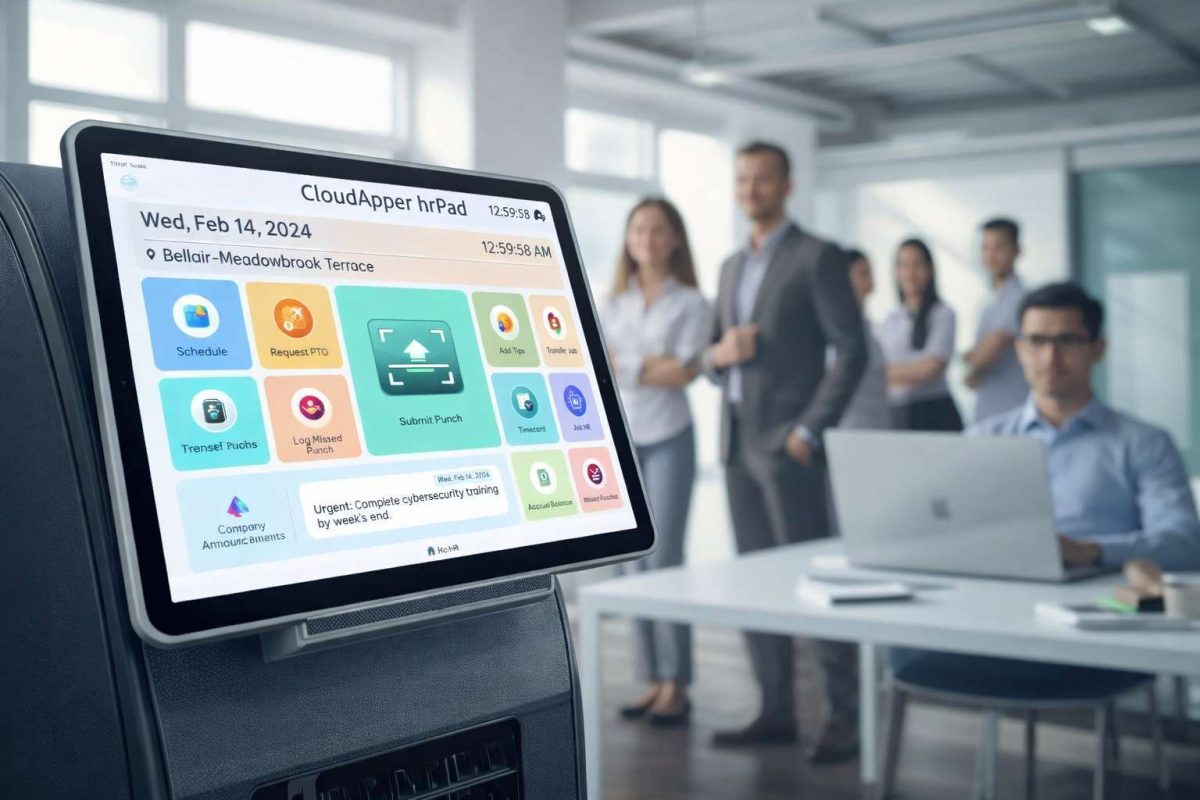
Beyond just editing timecards, hrPad acts as a comprehensive Employee Self-Service (ESS) hub. Many frontline workers—those in warehouses, hospitals, or construction sites—don’t have easy access to a laptop to check their UKG Pro portal.
By deploying hrPad tablets throughout your facility, you give these workers 24/7 access to:
-
View Schedules: No more confusion about the next shift.
-
Request Time Off: Employees can submit requests directly from the tablet.
-
Check Pay History: Quick access to pay stubs reduces inquiries to the HR department.
-
HR Assistant: An AI-powered chatbot can answer common policy questions, such as “How much vacation time do I have left?” or “When is the next company holiday?”
Frequently Asked Questions (FAQ)
Q: Can I edit a timecard in UKG Pro from my mobile phone?
A: Yes, the UKG Pro mobile app allows managers to perform basic timecard edits, such as adding a missing punch. However, for complex edits like signed-off periods or detailed schedule adjustments, the desktop version or an integrated tool like hrPad is often more efficient.
Q: How does CloudApper hrPad prevent “Buddy Punching”?
A: hrPad uses advanced facial recognition and biometric verification. When an employee makes an edit or a punch, the system verifies their identity, ensuring that only the authorized employee is modifying their time record.
Q: Does hrPad work with UKG Ready and UKG Dimensions?
A: Yes. CloudApper hrPad is designed to integrate across the UKG ecosystem, including UKG Pro, UKG Pro WFM (Dimensions), and UKG Ready.
Q: Is hrPad difficult to set up?
A: Not at all. Because it is a cloud-based solution that runs on standard tablets (iPad or Android), it doesn’t require the expensive, proprietary hardware installation of traditional time clocks. We work with your team to customize the software logic to match your UKG configuration.
Q: What happens if the internet goes down?
A: hrPad features an “Offline Mode.” It will continue to capture punches and attestations locally and will automatically sync the data with UKG Pro the moment the connection is restored, ensuring no data loss.
The Bottom Line: Efficiency Through Automation
Knowing how to edit timecards in UKG Pro is a necessary skill, but manually managing hundreds of edits every week is a drain on your company’s resources. By adopting a modern, flexible solution like CloudApper hrPad, you can shift the responsibility of timecard accuracy from the manager’s desk to the employee’s fingertips.
CloudApper hrPad doesn’t just “fix” timecards; it modernizes your entire approach to HR. From automating compliance through attestation to providing a high-tech ESS portal for your frontline staff, hrPad ensures that your UKG Pro investment reaches its full potential.
Ready to say goodbye to manual timecard edits? Explore how CloudApper hrPad can customize and automate your UKG Pro experience to meet your organization’s unique needs today.