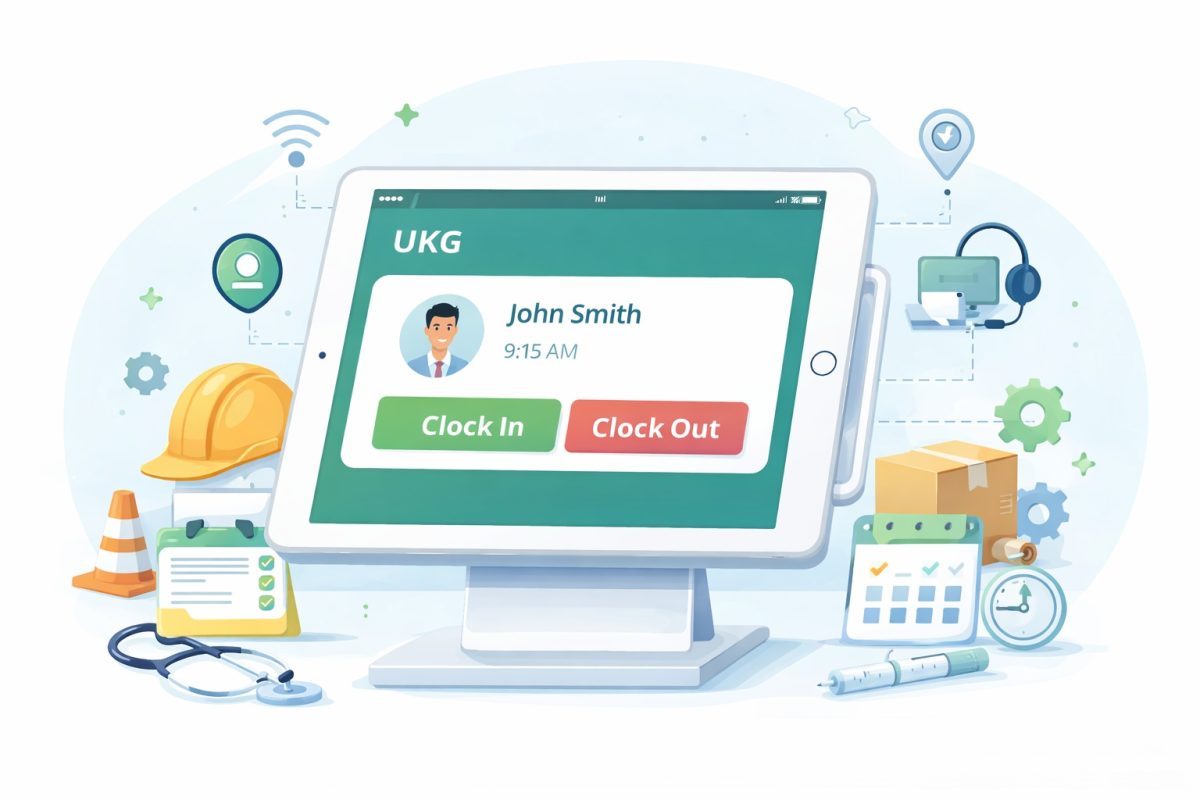
A real payroll scramble shows why labor control matters in UKG. This guide explains how budgets, cost centers, and real-time alerts work together with CloudApper AI TimeClock to help you spot issues early and keep labor costs steady each week.



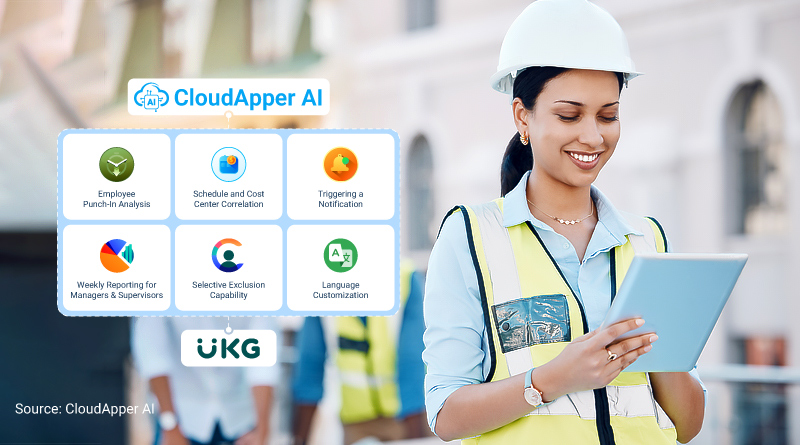
Table of Contents
Before I dive into the main topic, let me share a story with you that I recently heard from a UKG user. Last Friday, payroll was about to close when a manager noticed that three employees had worked past their budgeted hours again. No one caught it during the week. Now there was a rush to approve overtime, explain the variances, and update reports before Monday. I have seen this same situation play out across retail floors, hospital units, and factory shifts more times than I can count. This is exactly why labor control in UKG is not just a system setting. It is a daily operational lifeline that protects your budget, your compliance, and your peace of mind.

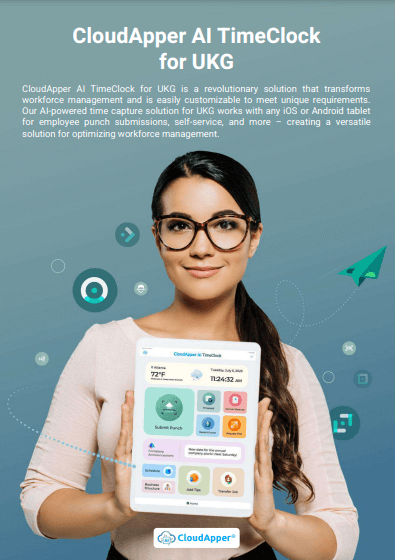
This is where CloudApper AI TimeClock for UKG becomes part of the real solution. It works right inside your existing UKG environment and helps you see labor issues the moment they start instead of after the damage is done. Instead of discovering budget overruns during payroll, you and your managers get visibility while employees are still on the clock. From my experience helping UKG users smooth out daily workforce challenges, this one shift alone changes how confidently teams manage labor.
TL;DR:
-
Labor control in UKG helps you track employee hours against schedules, cost centers, and budgets to prevent overtime and payroll surprises.
-
UKG uses labor levels, cost centers, and dashboards to manage workforce costs across teams and locations.
-
Real-time labor issues often go unnoticed until payroll is processed without added punch-level visibility.
-
CloudApper AI TimeClock for UKG adds real-time punch monitoring and automated alerts at clock-in.
-
Weekly reports and employee alerts help you fix labor issues before they impact payroll and compliance.
What Is Labor Control in UKG (Kronos)?
Labor control in UKG means managing how employee work hours align with your planned labor budget. At a practical level, it helps you confirm whether employees are working in the correct cost centers, staying within scheduled hours, and following overtime rules. It also helps managers spot issues before payroll runs instead of after the fact.
UKG uses labor levels, cost centers, and schedules to organize how time is tracked. Every time an employee clocks in, UKG connects that punch to a department, job role, and budget category. This allows you to track labor usage across teams and locations with accuracy and consistency.
Why Labor Control Matters for You as a UKG User
UKG already provides solid labor management tools that form the foundation of labor control. Labor levels create the structure for how time is tracked by defining location, department, job, and project. Cost center assignments determine where labor dollars are charged when employees work in specific departments.
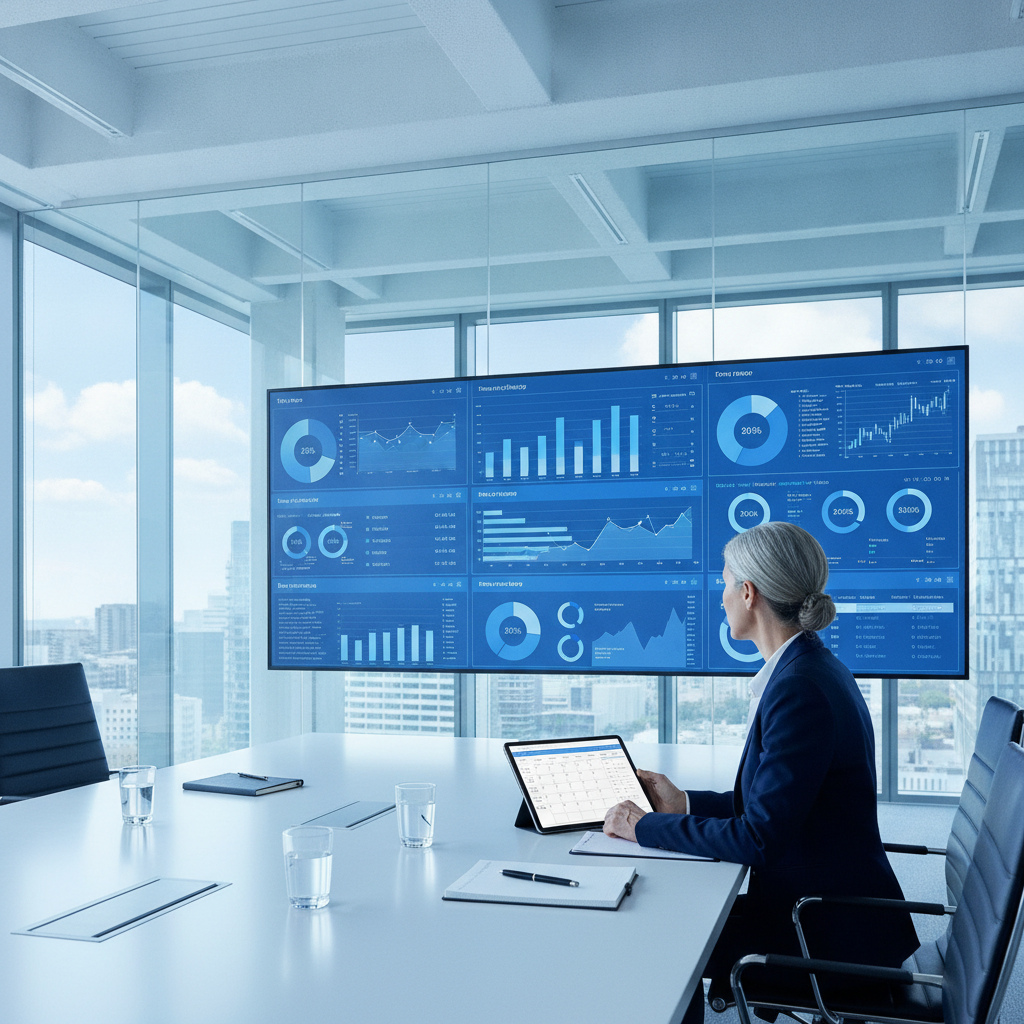
UKG also supports labor allocation, which allows employees who work across departments to split their time correctly. Forecasting tools estimate future labor needs based on historical patterns and demand. Overtime and exception rules track when employees cross defined thresholds. Dashboards then bring all of this data together to give managers visibility into labor usage and overtime trends across teams.
All of this works well. The challenge is not the tools themselves. The challenge is timing and real-time visibility.
How Labor Control Works Natively in UKG
UKG already provides solid labor management tools. Here is how the native system handles labor control.
| UKG Labor Control Feature | What It Does | Why It Matters for Your Team |
|---|---|---|
| Labor Levels | Creates the structure for tracking time by location, department, job, and project. Every punch is tied to these levels. | Ensures employee hours are categorized correctly for reporting and budgeting. |
| Cost Center Assignment | Assigns where labor dollars are charged when employees work in specific departments. | Keeps labor spending aligned with department budgets and financial reporting. |
| Labor Allocation Rules | Allows employees to split time across multiple jobs or departments. | Helps accurately track labor for employees who work in more than one area. |
| Labor Forecasting | Estimates future staffing needs based on past trends, demand, and schedules. | Helps you plan staffing in advance and avoid last-minute overtime. |
| Overtime and Exception Control | Tracks when employees cross overtime limits or rule thresholds. | Protects you from unexpected overtime costs and compliance risks. |
| Alerts and Warnings | Flags when certain thresholds are reached. These usually appear in reports or dashboards. | Helps managers spot issues, though often after the shift ends. |
| UKG Pro WFM Dashboards | Provides visual views of labor usage, overtime, and staffing trends. | Gives managers a high-level snapshot of workforce activity across teams. |
All of this works well. The challenge is not the tools. The challenge is timing and visibility.
Where CloudApper AI TimeClock Improves Labor Control in UKG
CloudApper AI TimeClock for UKG works alongside your existing UKG setup. It does not replace anything. It simply adds smarter control at the moment punches happen.
From what I have seen in live environments, this makes a huge difference. Instead of finding issues at the end of the week, managers see them as they start.
Here is what it adds to your labor control process:
-
Real-time punch analysis
-
Budget awareness at clock-in
-
Automated alerts to employees
-
Weekly visibility for supervisors
-
Language-based communication
-
Selective control by role or department
All of this stays synced with your UKG system.
How the CloudApper Labor Control Workflow Works
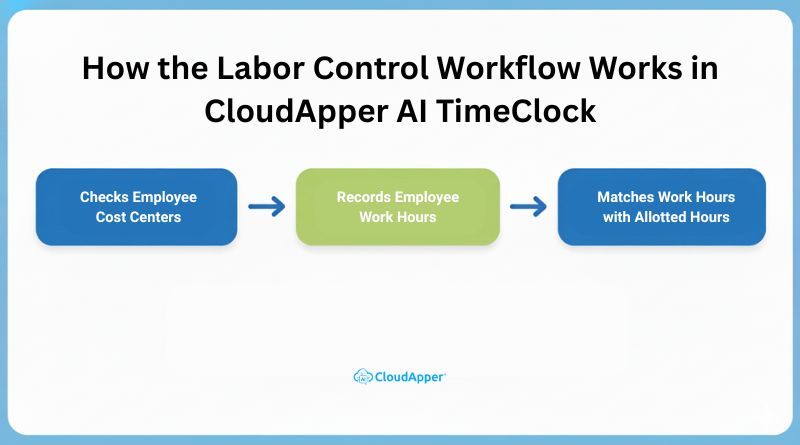
Let me explain this in simple terms.
When an employee clocks in, CloudApper AI TimeClock reads the punch from UKG. It then looks at that employee’s recent work history over a set time window, such as the last two weeks.
The system checks three things:
-
Which cost center the employee punched into
-
How many hours they have already worked
-
Whether those hours exceeded budget rules
If the employee crossed a defined threshold such as a specific number of extra hours or a percentage over budget at least three times in that period, the system sends an automatic text message to the employee.
The message shows:
-
The cost center name
-
The total budgeted hours
-
A reminder that they are nearing their limit
Managers also receive a weekly report that shows how often alerts were sent and to whom.
You can exclude specific employees or cost centers if needed. Messages go out in each employee’s default language as set in UKG.
This process helps prevent quiet budget overruns before they turn into payroll problems.
If you want to see how this labor alert workflow would actually look with your own UKG data, a quick walkthrough can make it crystal clear.
Use Cases by Industry
Manufacturing
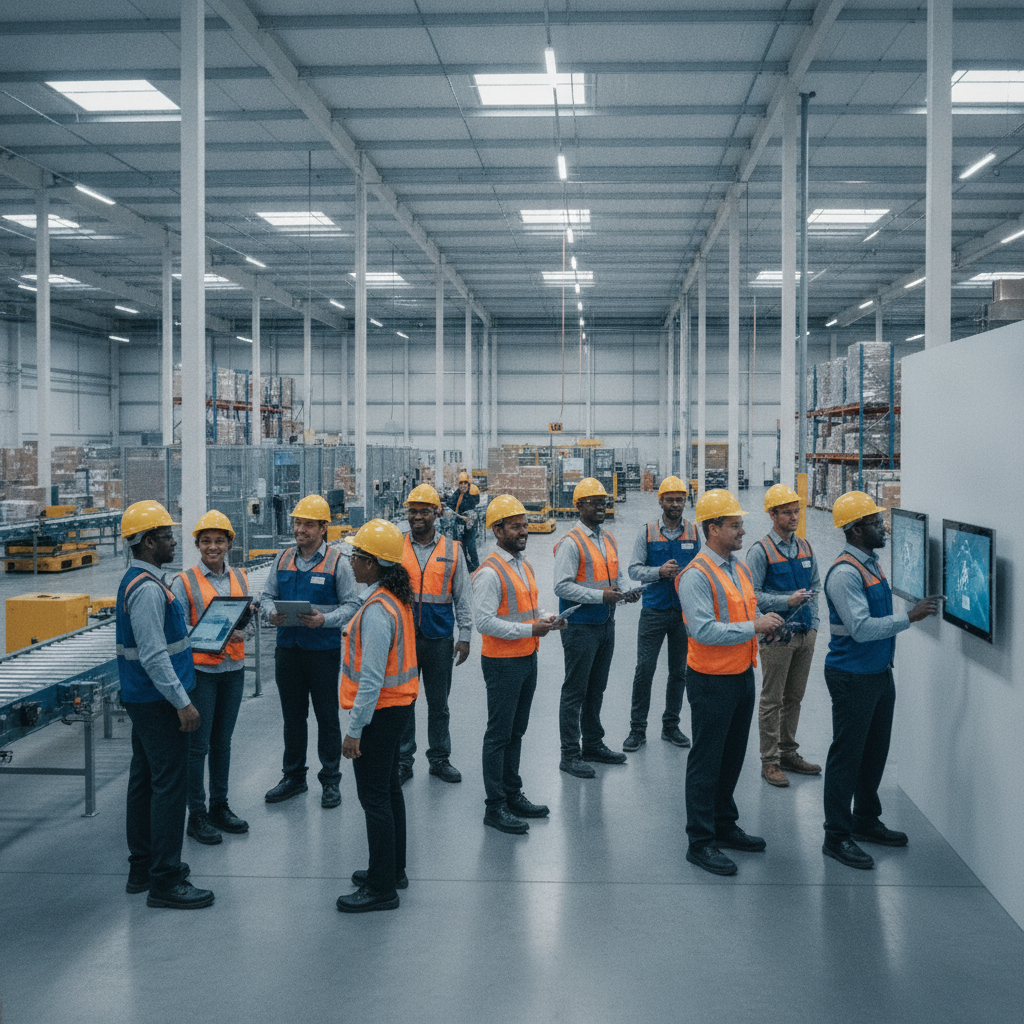
In factories, overtime often creeps in during shift handoffs. I have seen CloudApper alerts stop extended shifts before they push teams into unplanned overtime.
Retail
Retail teams deal with surge demand. Real-time budget visibility helps store managers adjust staffing without breaking labor targets.
Healthcare
Nurses and support staff often float across departments. Labor alerts help keep hours aligned with each unit’s budget.
Logistics
Seasonal demand can cause spikes in labor usage. Weekly reporting makes it easier to rebalance staffing across locations.
Implementation Guide: How to Set Up Labor Control in UKG
Here is a simple step-by-step way to strengthen your labor controls.
-
Configure labor levels clearly for all locations and departments
-
Define schedules for each role and shift
-
Assign budgeted hours to each cost center
-
Set overtime and exception thresholds
-
Enable reporting dashboards for supervisors
-
Connect CloudApper AI TimeClock for real-time punch monitoring
-
Review weekly labor reports and adjust staffing as needed
This setup creates a loop of planning, monitoring, and correction.
CloudApper AI TimeClock for UKG: A Preconfigured Labor Control System
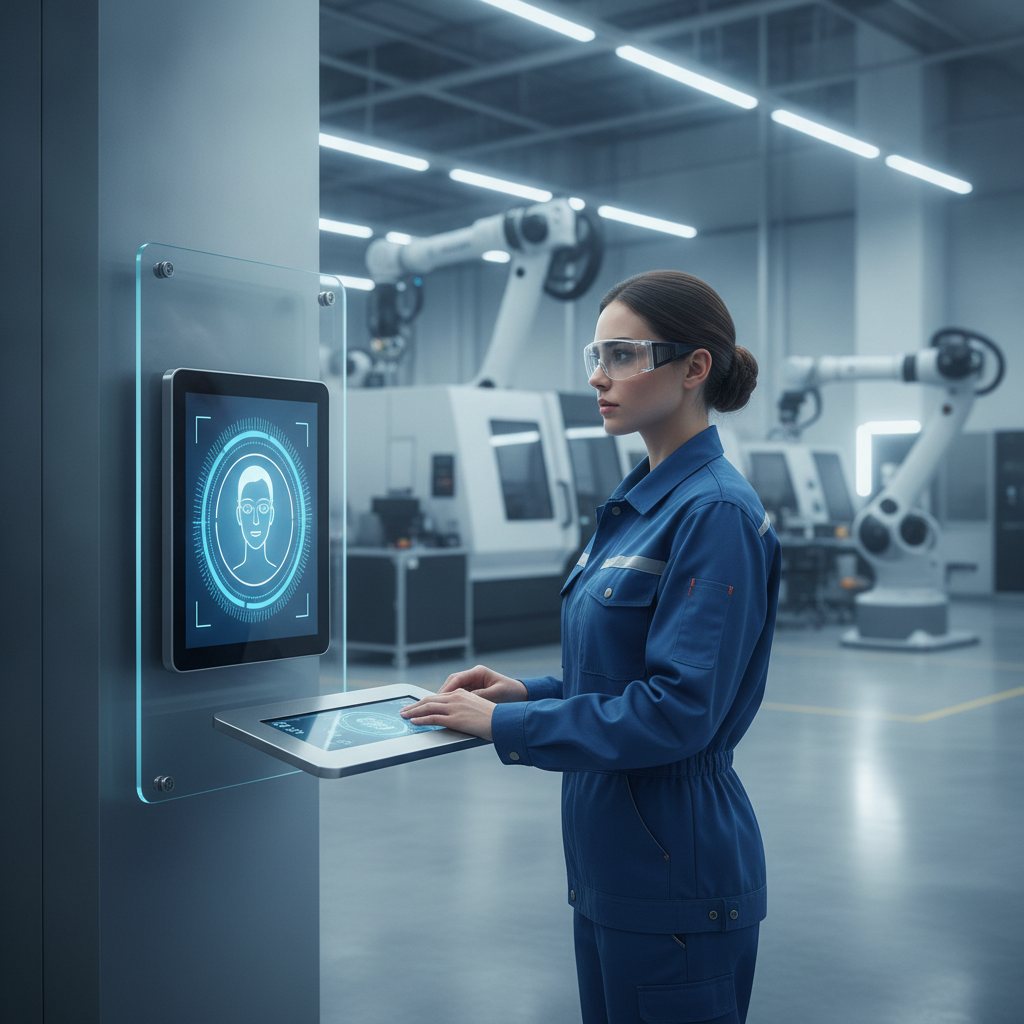
CloudApper AI TimeClock comes with labor control features ready to use. You do not need to redesign your UKG cost centers or rebuild your labor rules. It adds accurate real-time clock-ins and clock-outs, facial recognition to prevent buddy punching, location-based punch control through geo-fencing, self-service access for schedules and timecards, clean payroll data through direct UKG integration, and custom labor reports for audits and reviews.
Because the system is preconfigured, most teams go live faster than expected. I have seen full deployments finish in weeks instead of months.
Conclusion
Labor control in UKG works best when planning, monitoring, and communication all happen at the right time. UKG gives you the structure you need through labor levels, schedules, and dashboards. When you add CloudApper AI TimeClock for UKG, you gain real-time awareness that keeps small issues from becoming major payroll corrections.
If you want tighter budgets, fewer surprises, and better visibility into how your workforce operates day to day, this combined approach gives you that control without adding pressure on your managers.
If labor overruns keep showing up during payroll instead of during the week, it may be time to add real-time visibility to your UKG process.
Frequently Asked Questions
-
What is labor control in UKG?
Labor control in UKG means tracking employee hours against schedules, cost centers, and labor budgets to manage costs and compliance.
-
What is the difference between UKG labor levels and cost centers?
Labor levels organize how work is classified by location and job. Cost centers assign where labor costs are charged financially.
-
How do labor budgets work in UKG?
Labor budgets define how many hours or dollars each department can use within a set period. Actual work hours are tracked against that target.
-
Does UKG warn employees when they exceed labor limits?
UKG provides reporting and dashboard alerts. Real-time employee notifications typically require added automation.
-
How does CloudApper AI TimeClock integrate with UKG?
It syncs directly with UKG time and labor data to analyze punches, send alerts, and generate reports without changing your core setup.
-
Can I customize labor alerts by department?
Yes. You can control alerts by cost center, role, or individual employee.
-
Does CloudApper AI TimeClock support multiple languages?
Yes. Messages follow the default language stored in UKG for each employee.