
If your teams are seeing too many job options when clocking in, it’s time to clean that up. This article shows how CloudApper hrPad extends UKGs capabilities to limit job transfers by role and location so employees only see the jobs they’re actually qualified for. It’s a simple way to reduce errors, speed up punch-ins, and keep everything compliant without changing how UKG works.




Table of Contents
Job transfers are a vital part of workforce management in UKG. Organizations with multiple locations and diverse roles must ensure that employees only access appropriate job transfer options. Without clear restrictions, employees may see jobs that don’t match their qualifications or location, increasing the chance of errors and compliance issues.
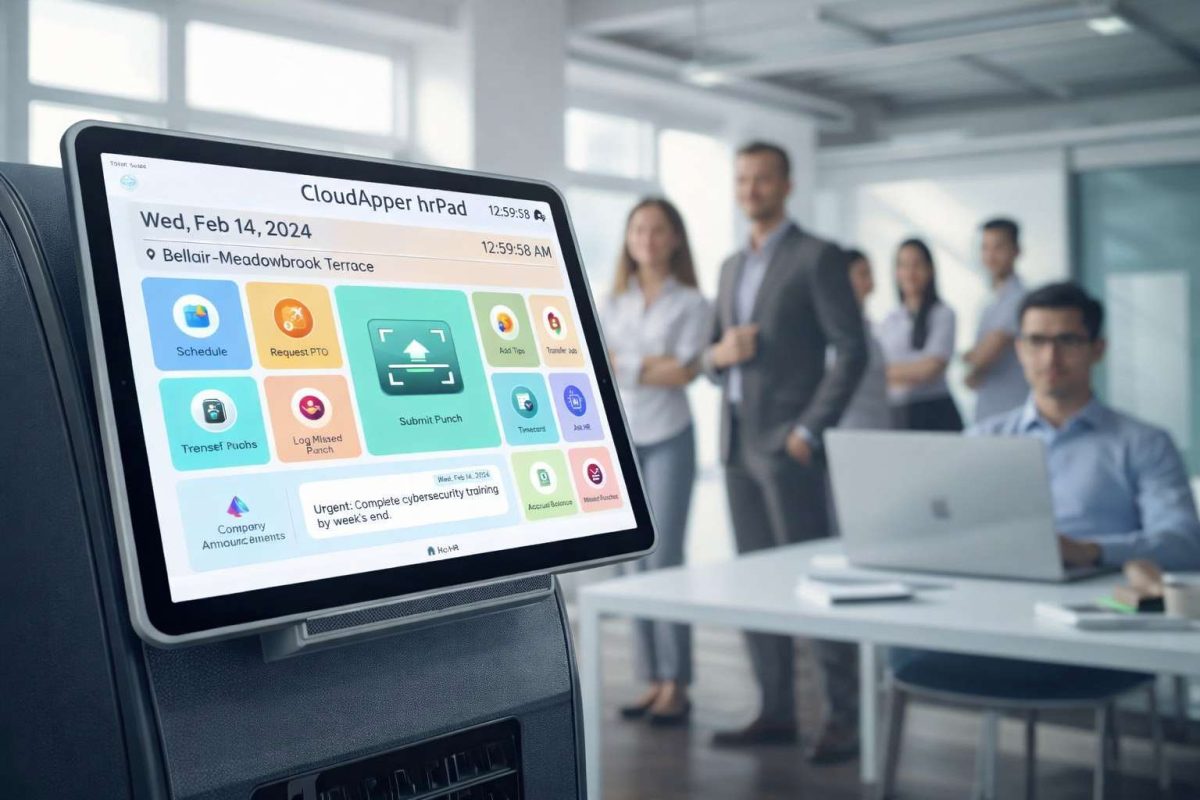
To solve this, CloudApper hrPad adds intelligent job filtering to the UKG punch-in process. It integrates with UKG Ready and UKG Dimensions, enabling organizations to display only the job options relevant to an employee’s role and work location.
Why Restricting Job Transfers Is Important in UKG
UKG offers powerful job and labor allocation features. However, without filtering, employees may view too many job options. This increases the risk of incorrect job selection, which can affect payroll, compliance, and operational reporting. It can also lead to manual corrections and added administrative burden.
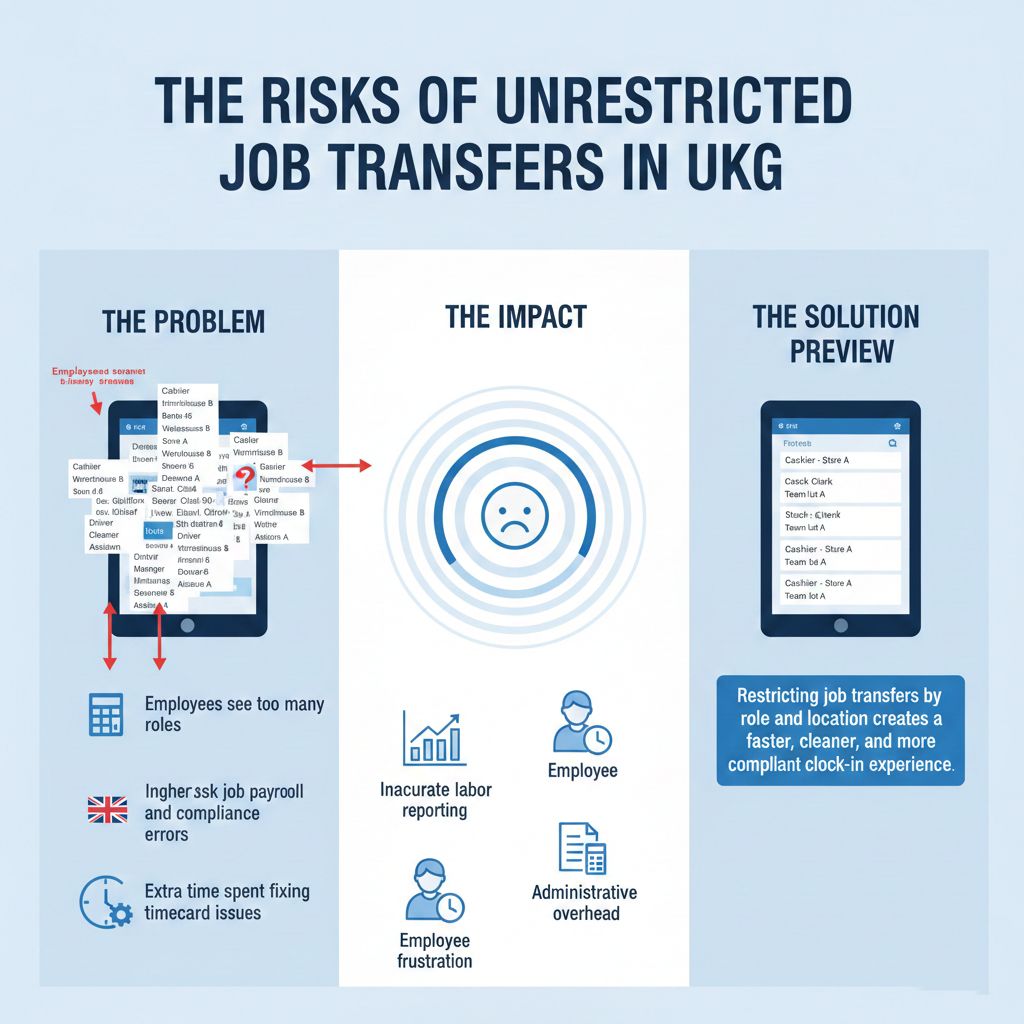
Restricting job transfers helps HR and operations teams maintain control without sacrificing efficiency. Employees see only jobs that match their position and assigned location. This simplifies the clock-in experience and ensures accurate time tracking.
How CloudApper hrPad Enhances Job Transfers in UKG
CloudApper hrPad improves UKG job transfers by filtering available jobs based on two key factors: location and role. Each hrPad tablet or kiosk connects to a specific location, usually linked to a cost center or work order already configured in UKG.
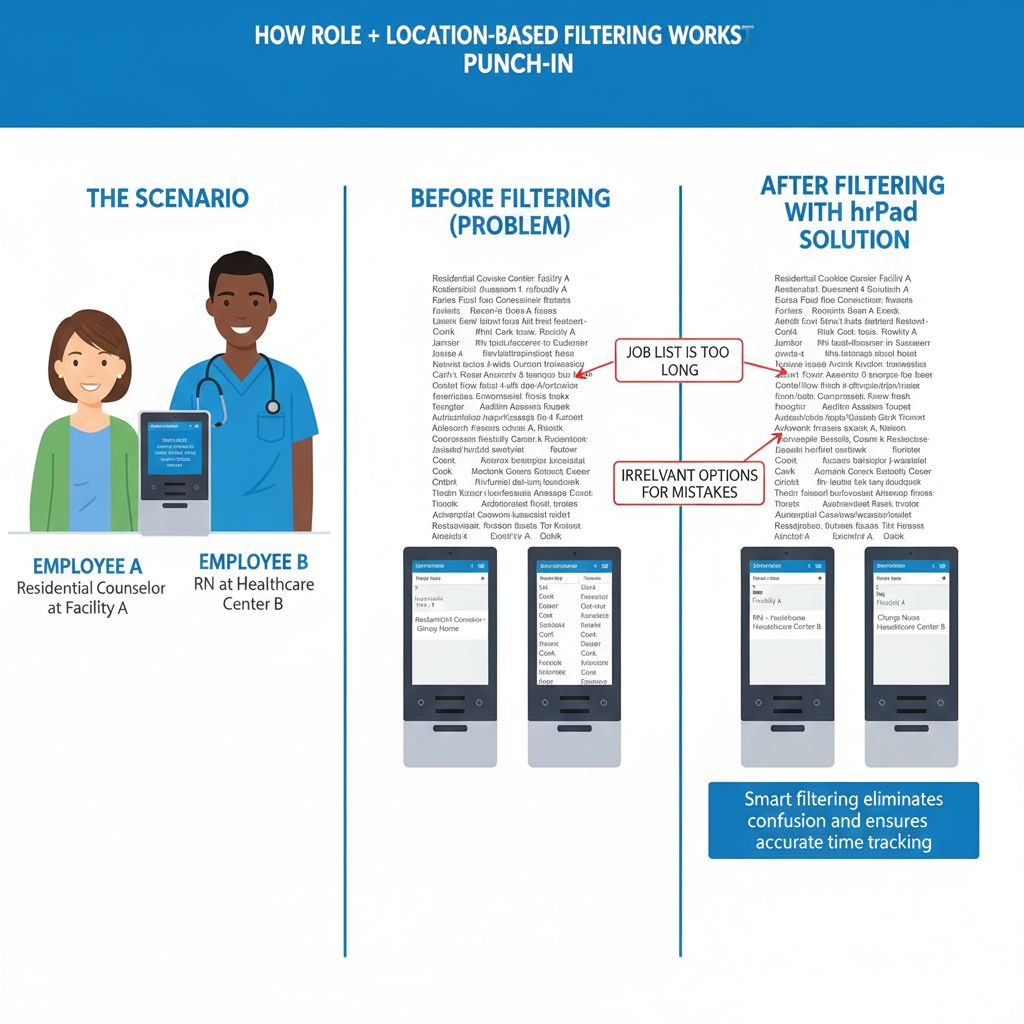
When employees clock in, hrPad checks the kiosk’s location. Then, it filters job options based on the employee’s job title or role. For example, a Residential Counselor sees only counselor-related jobs. A licensed nurse views only nursing positions. This real-time filtering ensures employees access only jobs they’re allowed and qualified to perform.
Role-Based and Location-Based Filtering in Practice
hrPad applies location and role filters during the punch-in process. This approach ensures employees view only the job transfer options relevant to them. A kiosk installed at a healthcare facility may show nursing roles to licensed staff but not to housekeeping or admin employees.
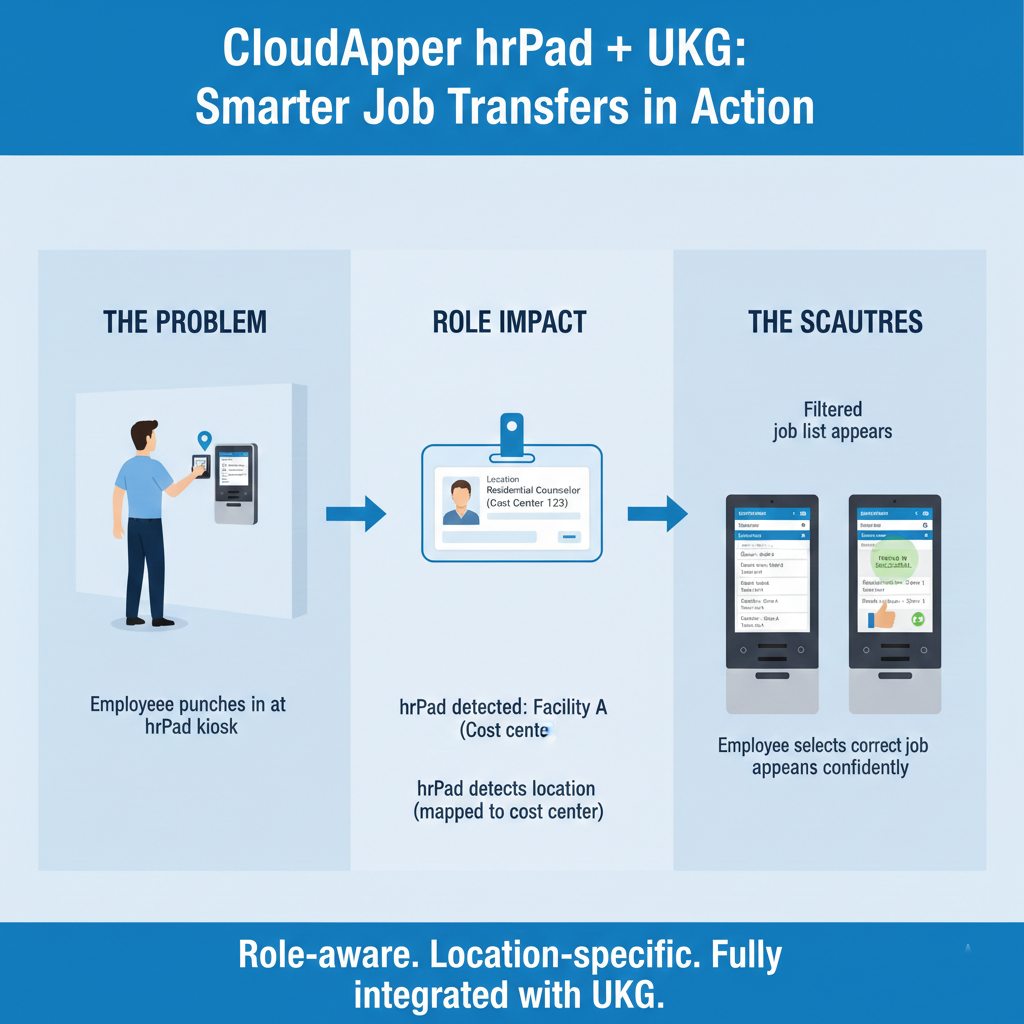
This configuration supports shared locations, mixed teams, and rotating schedules. It also improves data accuracy while guiding employees to the correct jobs from the start.
Configuration Differences Between UKG Ready and UKG Dimensions
UKG Ready users can apply filtering through hrPad’s Limit List feature. This lets administrators assign specific job options to defined employee groups. During clock-in, hrPad checks the employee’s group and only displays matching jobs for that role and location.
UKG Dimensions users achieve the same results through Org Path alignment. Each employee’s Org Path defines their place in the company structure. hrPad uses this data to determine which job transfers to show. As long as the Org Path and job mapping are correctly configured, the filtering works automatically.
How to Restrict Job Transfers in UKG Using hrPad
Start by assigning each hrPad kiosk to a location or cost center. This creates the first layer of filtering. Then, review employee roles and groupings.
In UKG Ready, configure Limit Lists to match employees to the jobs they qualify for. In UKG Dimensions, ensure Org Paths align with job eligibility.
Once everything is mapped, hrPad uses this information to filter job transfer options during punch-in. Employees see only the roles that match their job profile and the location of the kiosk they’re using.
Frequently Asked Questions
Does this change job configuration in UKG?
No. You manage jobs, cost centers, and structures in UKG as usual. hrPad only filters what appears on the punch-in screen.
Can employees with multiple roles see more than one job option?
Yes. If an employee holds multiple roles, hrPad can show all applicable jobs that match their profile and location.
Does this work with different punch-in methods?
Yes. Whether using facial recognition, PIN, or QR code, hrPad applies the same filtering logic.
Does hrPad replace UKG job transfer features?
No. hrPad enhances the experience by providing dynamic filtering. It works with the job structure already in UKG.
Conclusion
Restricting job transfers in UKG by role and location helps organizations reduce errors, improve compliance, and simplify time tracking. With CloudApper hrPad, companies can guide employees to select only the jobs they’re qualified for based on their role and worksite.
This enhancement keeps UKG configurations intact while improving data quality and employee experience. For HR and HRIS teams that want more control over job transfer behavior without disrupting UKG workflows, hrPad delivers a practical, scalable solution.
To explore how CloudApper hrPad can support your UKG job transfer workflows, visit cloudapper.ai/hrpad or reach out to the CloudApper team.