
To configure shift swap requests in UKG Pro WFM (Dimensions), create or duplicate a Request Subtype with the request type Swap under Administration > Application Setup > Employee Self Service, then set the notification options, automatic approval, cross-manager swaps, and the minimum rule severity that blocks invalid swaps. Full walkthrough below.

A shift swap involves the exchange of shifts between employees and typically occurs in two steps. Initially, an employee offers one of their scheduled shifts to trade with a shift that another employee is scheduled to work. Subsequently, the recipient employee has the option to accept or decline the request.
Configuring Shift Swap Requests: Step by Step
In order to configure the shift swap on UKG Pro WFM/Dimensions, follow these steps:
To access the desired page, follow these steps:
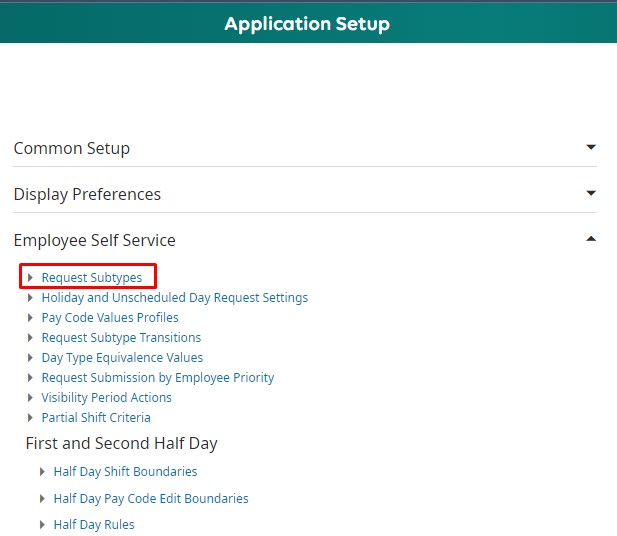
- Expand the main menu.
- Navigate to “Administration” and select “Application Setup.”
- Within the available options, locate “Employee Self Service” and expand it.
- From the expanded options, select “Request Subtypes.”
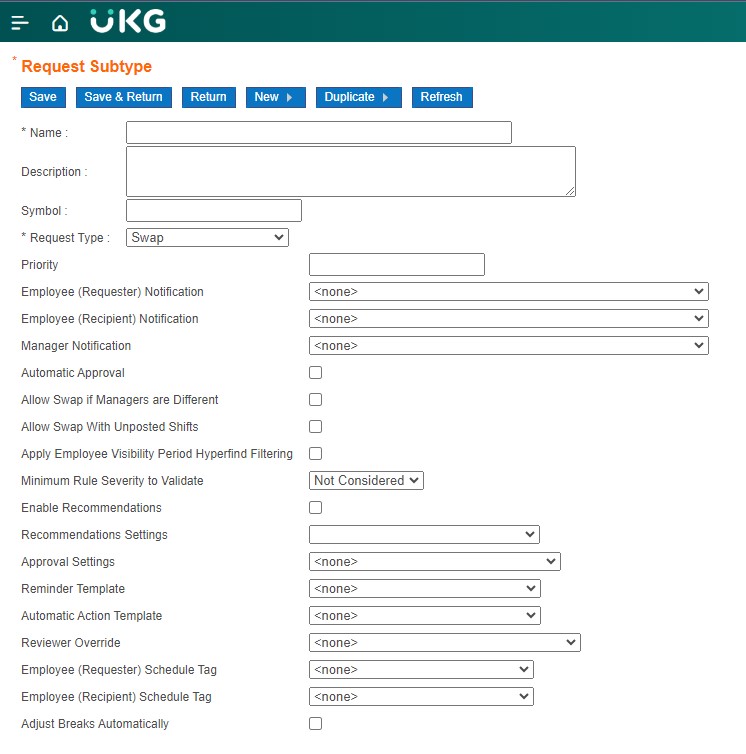
It’s crucial to note that making edits to existing subtypes can impact ongoing requests. To prevent this, you have the option to create a new subtype or duplicate an existing one. When creating a new subtype, it’s optional to provide a description and symbol. Additionally, ensure to select “Swap” as the request type.
Next, proceed to configure the Notification Settings. Not doing so will result in managers not being notified when an employee submits a request, or employees not being notified when their requests are approved or declined. However, regardless of the notification settings, requests will still undergo the submission and approval process.
- Employee (Requester) Notification: Choose this option to send notifications to employees who initiate shift swap requests, informing them of the status of their submissions, whether they are accepted or rejected.
- Employee (Recipient) Notification: Opt for this notification to be sent to employees when they receive requests from others to swap shifts.
- Manager Notification: Select this notification to be sent to managers whenever there is a change in the status of requests, such as when employees submit, respond to, or cancel a shift swap request.
After configuring the Notification Settings, proceed to select the “Automatic Approval” option if you prefer shift swap requests to be approved automatically when the recipient accepts them, eliminating the need for manager intervention.
Additionally, consider enabling the “Allow Swap if Managers are Different” option to permit employees with different managers to swap shifts seamlessly.
Lastly, within the “Minimum Rule Severity to Validate” option, designate the minimum severity level of schedule rules required to block swap requests. The available options include:
- Not Considered – Submits requests regardless of rule severity.
- Informational – Blocks requests violating Informational, Warning, and No Save severity rules.
- Warning – Blocks requests violating Warning or No Save severity rules.
- No Save – Blocks requests violating No Save severity rules.
To enable the system to suggest shifts for swapping, tick the “Enable Recommendations” option. Additionally, choose “Adjust Breaks Automatically” to ensure that break rules are automatically applied to the shifts assigned to the requesting employee upon request approval. These break rules are specified in the Work Rule, a component of the Pay Rule assigned to the employee. Finally, click on “Save & Return” to confirm your selections.
Related Shift Management Guides
Shift swaps work alongside the rest of the scheduling toolkit: see open shifts in UKG Pro WFM: create, view & manage and changing schedule availability and preferences.
FAQ: Shift Swap Requests in UKG Pro WFM
Where do I configure shift swap requests in UKG Pro WFM?
Go to Administration > Application Setup > Employee Self Service > Request Subtypes, and create or duplicate a subtype with the request type set to Swap. Editing an existing subtype can affect in-flight requests, so duplicating is safer.
Can shift swaps be approved automatically in UKG Pro WFM?
Yes. Enabling the Automatic Approval option approves a swap as soon as the recipient accepts it, removing the manager-approval step. Schedule rule validation still applies based on the minimum severity you configure.
Can employees with different managers swap shifts in UKG?
Yes, if you enable the Allow Swap if Managers are Different option in the request subtype configuration.
Why aren’t managers getting notified about shift swap requests?
Notification settings are configured per request subtype. If Manager Notification (and the employee requester/recipient notifications) are not selected, requests still process through submission and approval – but nobody is alerted. Check the subtype’s Notification Settings.
Shift swaps without the configuration maze
Native swap subtypes handle the request plumbing — but employees still need to find each other. CloudApper’s Shift Swapping solution for UKG lets employees post, browse, and claim swaps from any device, applies your eligibility rules automatically, and syncs the result back to UKG Pro WFM.
See a free demo of Shift Swapping for UKG