

Certain pay code adjustments, like bonuses or vouchers, can be set up to not cancel Pay from Schedule. This means that employees will still receive their scheduled pay even if specific pay code edits, such as vouchers, are applied to their timecard. Your company determines which pay code edits are exempt from canceling Pay from Schedule.

Creating Pay Code Tags: To create pay code tags, administrators navigate to Main Menu > Administration > Application Setup > Pay Policies > Pay Codes > Pay Code Tags.
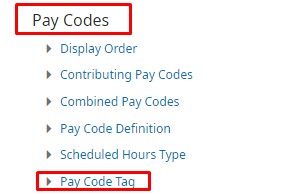
From there, they select Create, enter an appropriate name in the Pay Code Tag Name field, and then save the settings. Once created, the pay code tag can be applied within the pay code definition.

Editing Pay Code Definition: Administrators assign a pay code tag to those pay codes that do not cancel Pay from Schedule by navigating to Main Menu > Administration > Application Setup > Pay Policies > Pay Codes > Pay Code Definition.

From there, select the desired pay code, choose Edit, and then access the Tag area. After opening the Name drop-down list, select an appropriate tag and save the changes.
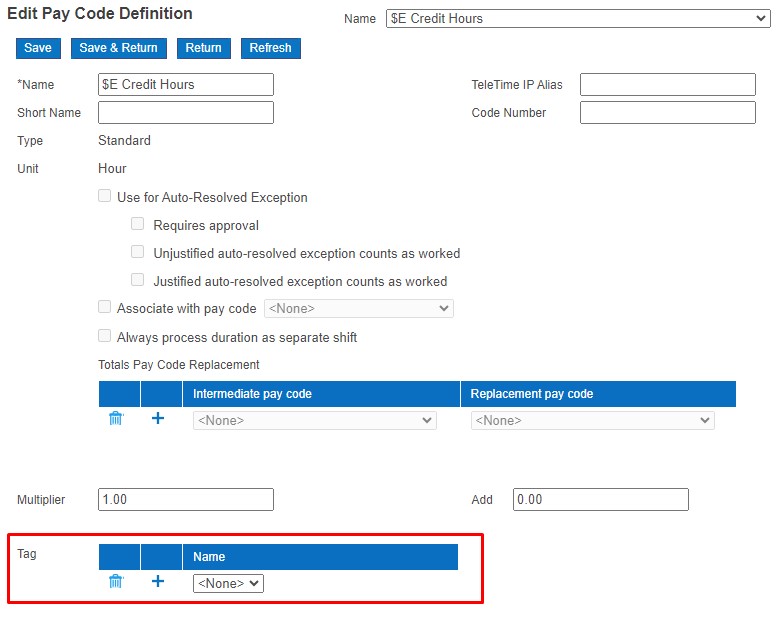
Once applied to a timecard that utilizes Pay from Schedule, the schedule shift time remains intact alongside the pay code edit.
Editing Pay Rules: To configure Pay Rule definitions, including managing Pay from Schedule and determining when to cancel Pay from Schedule for specific pay codes, follow these steps:
Navigate to Main Menu > Administration > Application Setup > Pay Policies > Pay Rules.
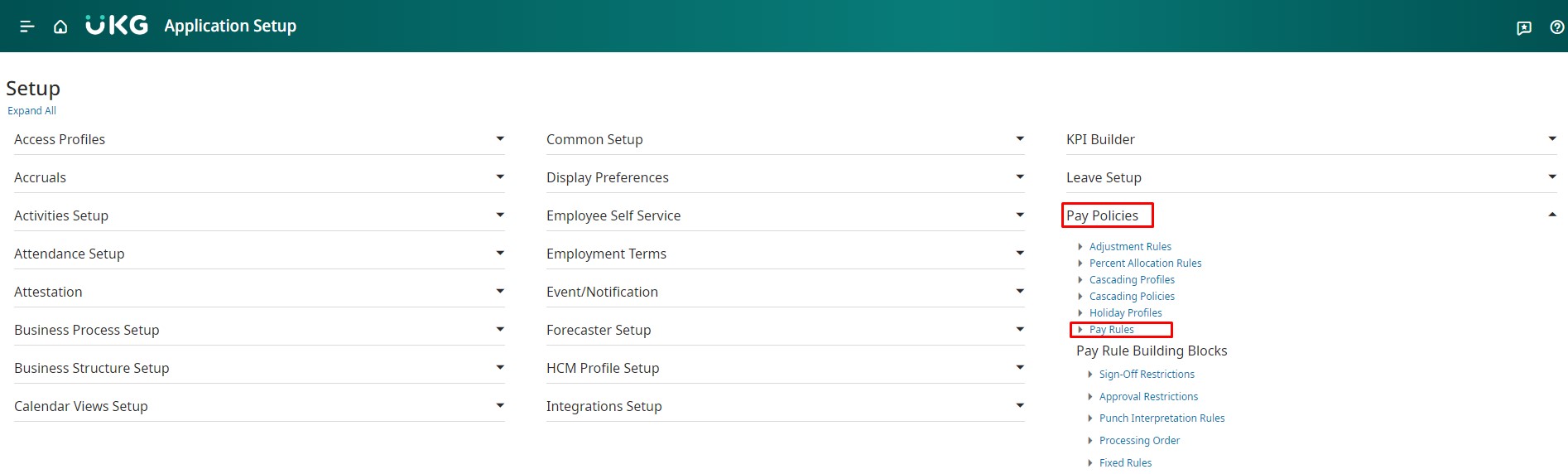
- On the Pay Rules page, select the desired pay rule and then choose Edit.
- In the Pay From Schedule section, define the following options:
- Pay From Schedule (Shifts): Choose Yes if employees are paid based on their schedule shifts, or No if they are not. If “Yes” is chosen, the Pay from Schedule shift is invalidated when there are actual events recorded for the day. For instance, if a manager or employee enters a duration for a Sick pay code, the scheduled shift will not be paid.
- If certain pay codes should not cancel Pay from Schedule, assign the relevant pay code tag.
- Pay from Schedule Applies on Holidays: Select Yes if employees should be paid according to their schedule on company-defined holidays, or No if they should not be paid for scheduled shifts on holidays.
Click Save to apply the changes.

The pay rules take effect either immediately upon configuration or based on the assigned version effective date.