
If you’re hiring temps, contractors, or seasonal staff, issuing badges and setting up biometric clocks slows everything down. This guide will show you how to batch-generate and print QR codes that let workers clock in using a simple tablet kiosk on a fast, scalable, and built for high-turnover teams.



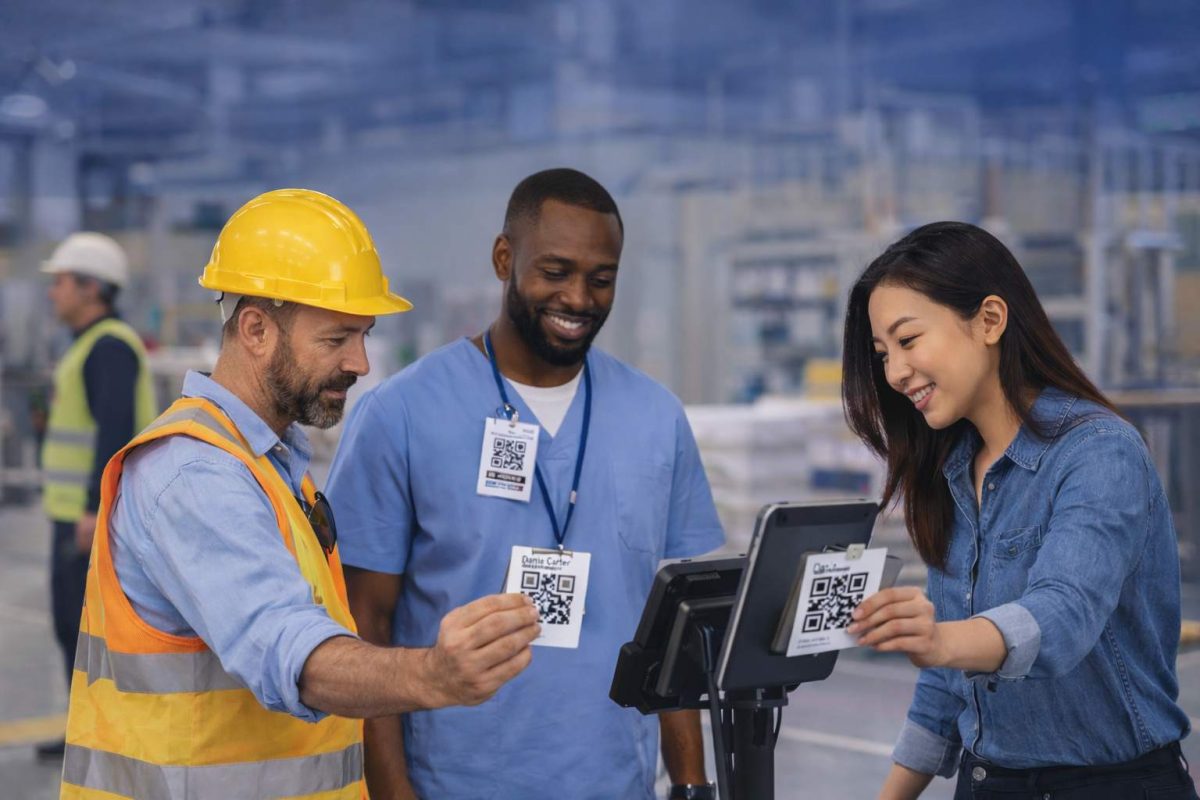
Table of Contents
Time tracking can get messy when you’re dealing with seasonal hires, temp staff, or contractors coming in and out of your organization. These folks usually don’t get full onboarding, they’re not issued badges, and they may not stick around long enough to justify it. That’s where QR codes come in and they’re quick to set up, easy to scan, and make a lot more sense for a high-turnover or fast-paced workforce.
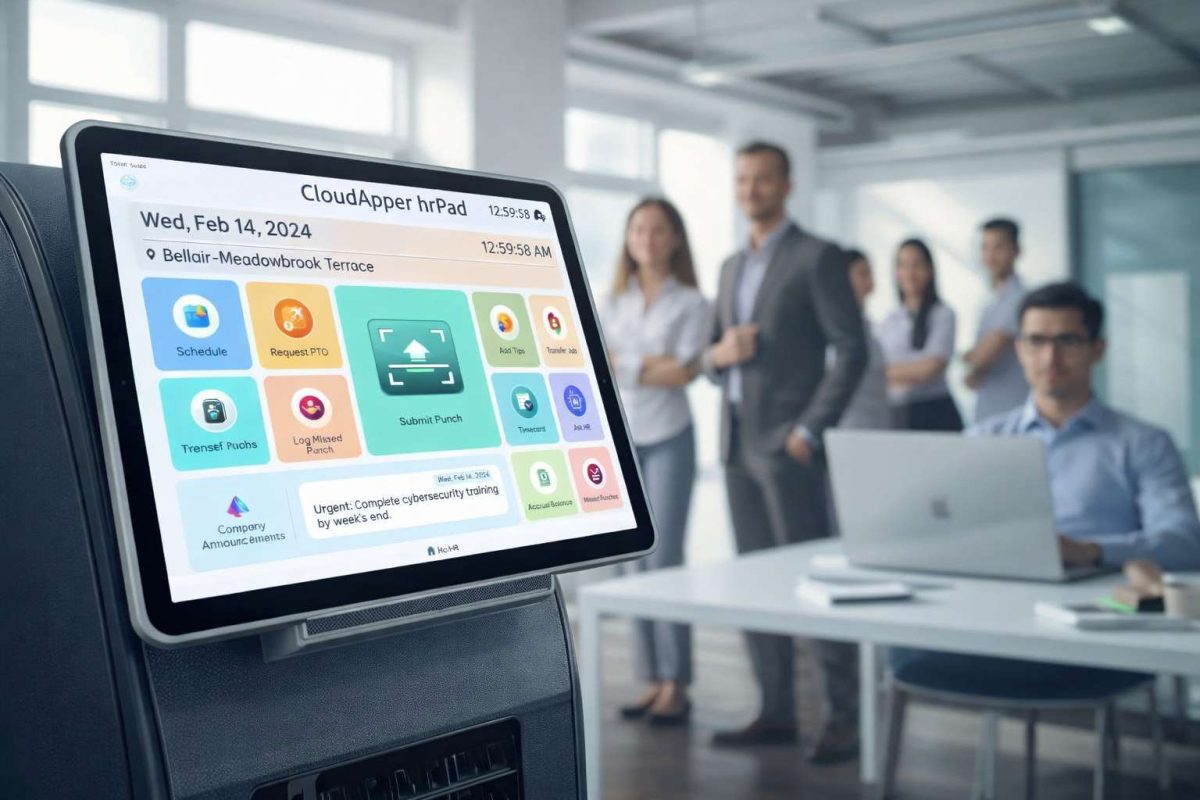
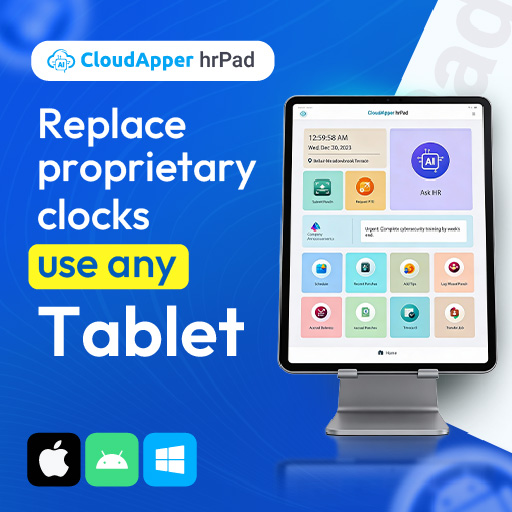
If you’re using UKG Ready or UKG Pro WFM (Dimensions), CloudApper hrPad makes this process super straightforward. It’s a tablet-based kiosk that turns any iPad, Windows or Android tablet into a modern time clock. And one of the best features? You can batch-generate QR codes for all your workers perfect for those companies that hire temporary staff in bulk. Whether you’re onboarding 20 contractors or 2,000 seasonal workers, this approach keeps things organized without slowing you down.
Why Batch Generate QR Codes Are Must for Temp Staff
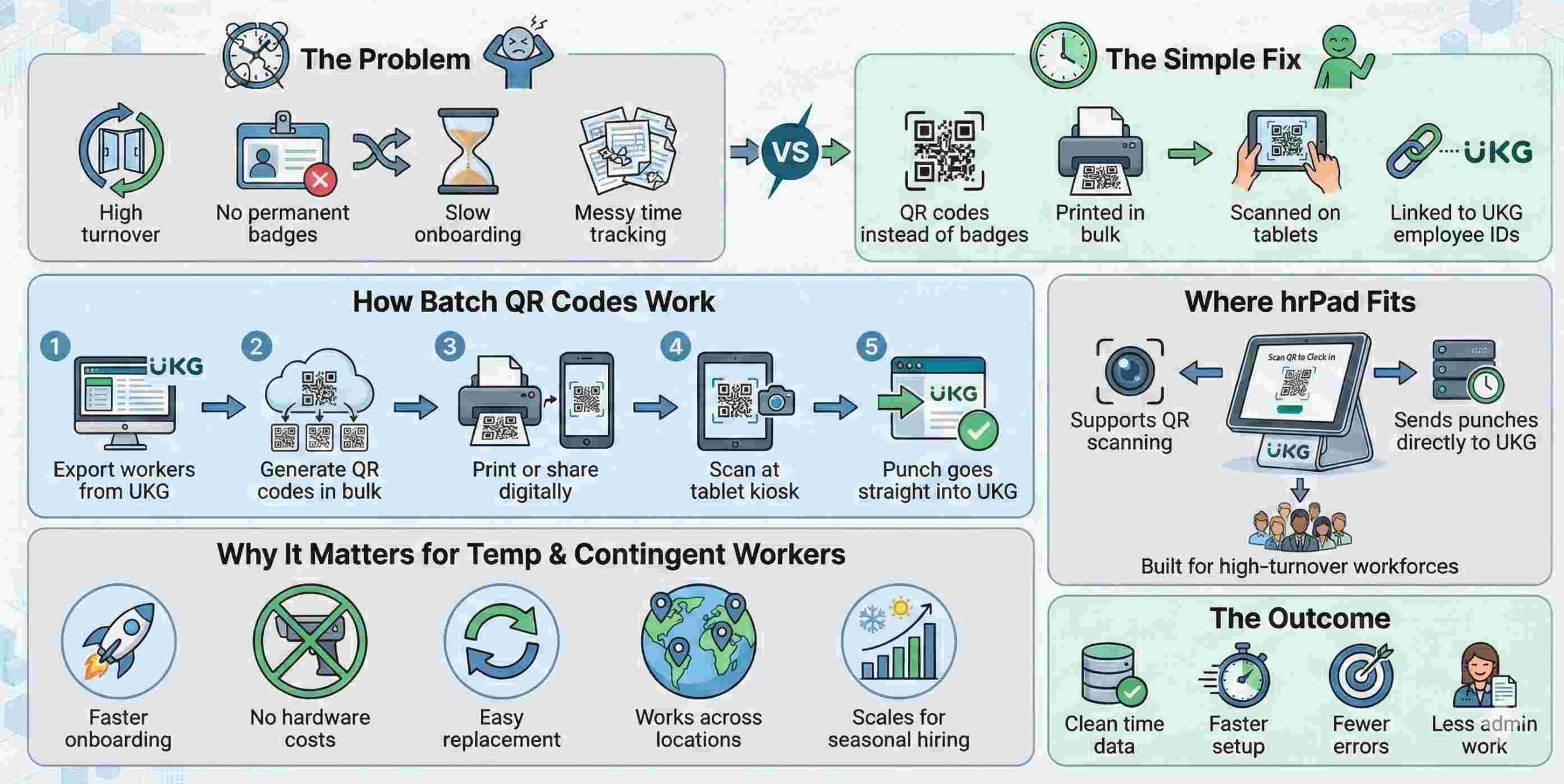
Traditional time clocks and badges aren’t built for short-term workers. They’re expensive, time-consuming to issue, and not really necessary if someone’s just here for a few weeks. QR codes, on the other hand, can be printed in minutes, reused if needed, and scanned with a simple tablet camera. No biometrics, no PIN memorization, no special hardware.
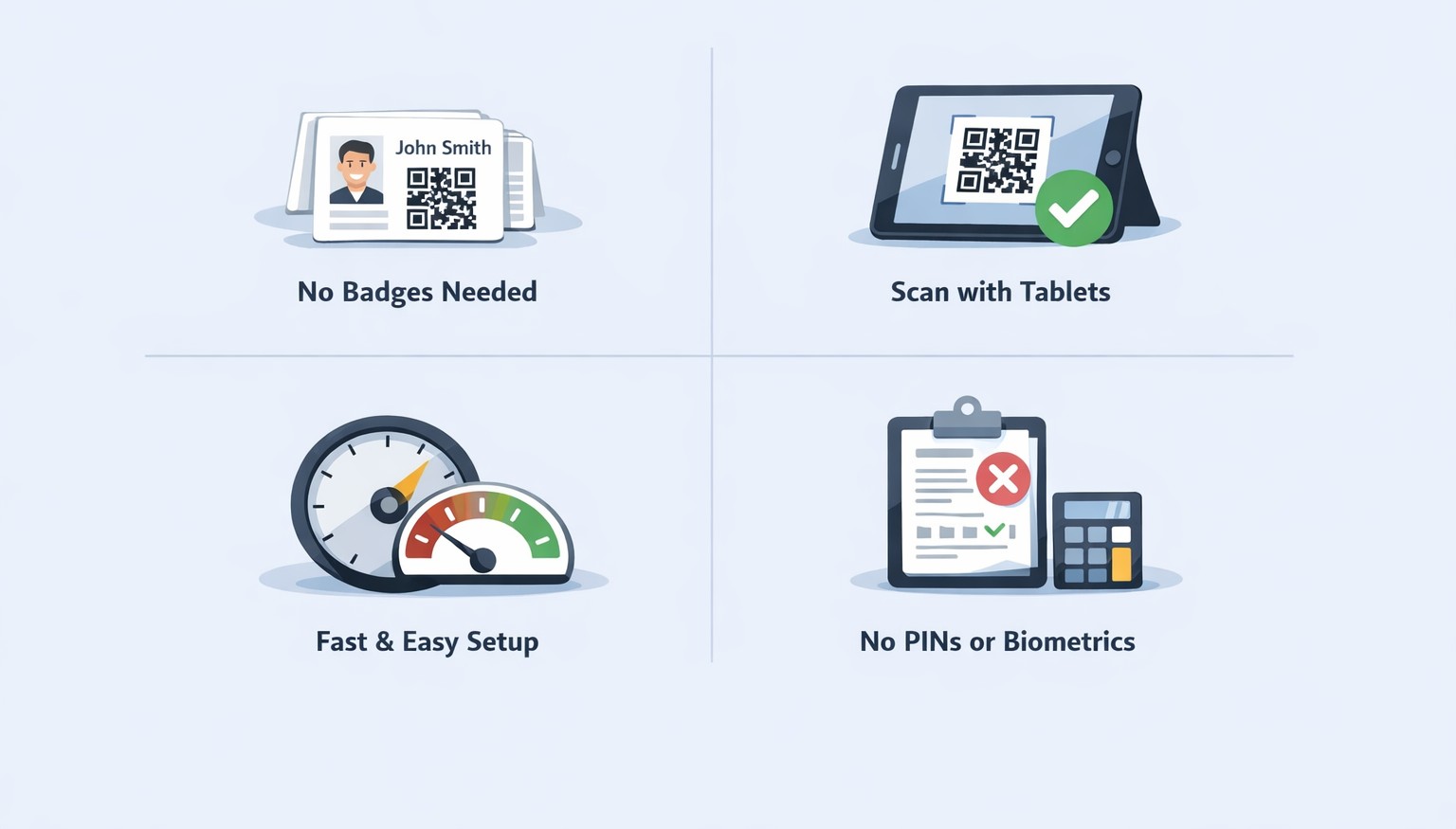
With hrPad, each QR code links directly to the employee’s UKG ID. Once scanned, it logs the punch straight into UKG in real time. No middleman, no delays. It’s clean, simple, and works from day one.
The Steps: From UKG Data to Printed QR Cards
Step 1: Get Your Employee List Ready
Pull a list of all the workers from UKG. This includes their names, employee IDs, and maybe department or location if you want to organize things a bit. The employee ID is the most important part—it’s what ties the QR code to the worker in UKG.
Step 2: Generate the QR Codes
Using the hrPad admin dashboard, upload that list and hit generate. The system takes care of the rest by creating a unique QR code for each worker. You can export the codes as images (PNG) or in a print-ready PDF.
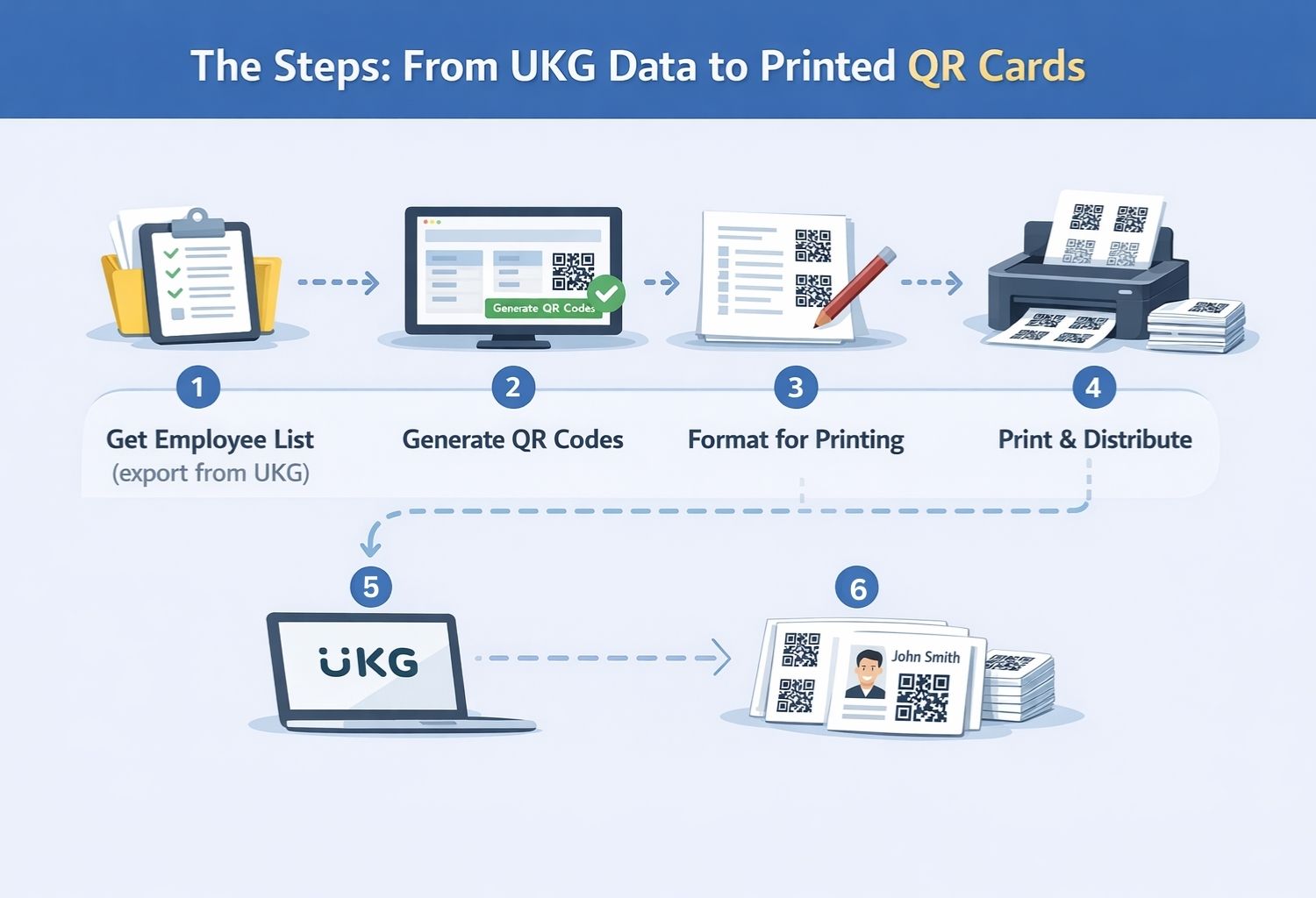
Step 3: Format Them for Use
Once you’ve got your QR codes, you can choose how you want to use them. Some companies print them as wallet cards, others stick them on clipboards, folders, or lanyards. You can also add the employee’s name or your company logo to make them easier to sort.
Step 4: Print and Hand Them Out
Now it’s just a matter of printing. You don’t need a special printer your standard office one works just fine. Hand them out during onboarding, orientation, or even via site managers. You can also email or text a digital version for mobile use if that’s more your style.
Step 5: Set Up Tablet-Based QR Scanning
At the site, plug in a tablet with the hrPad app installed. Employees scan their QR codes using the device camera, and their punches go straight into UKG. It takes seconds, and there’s no need for extra hardware or IT help.
Step 6: Reprint or Replace When Needed
If someone loses their code, switches locations, or comes back for another contract, no big deal. Just regenerate it from the hrPad admin panel and reissue it. Since it’s all tied to the same UKG ID, it won’t mess with your records.
Why Batch QR Codes Are a Must for Temp and Contract Workforces
When you’re dealing with non-permanent staff, time is everything. You don’t have weeks to set up access or train people on complex systems. QR codes let you onboard quickly and start tracking time immediately. Batch-generating them saves even more time, especially if you’re dealing with hundreds of workers across multiple locations.
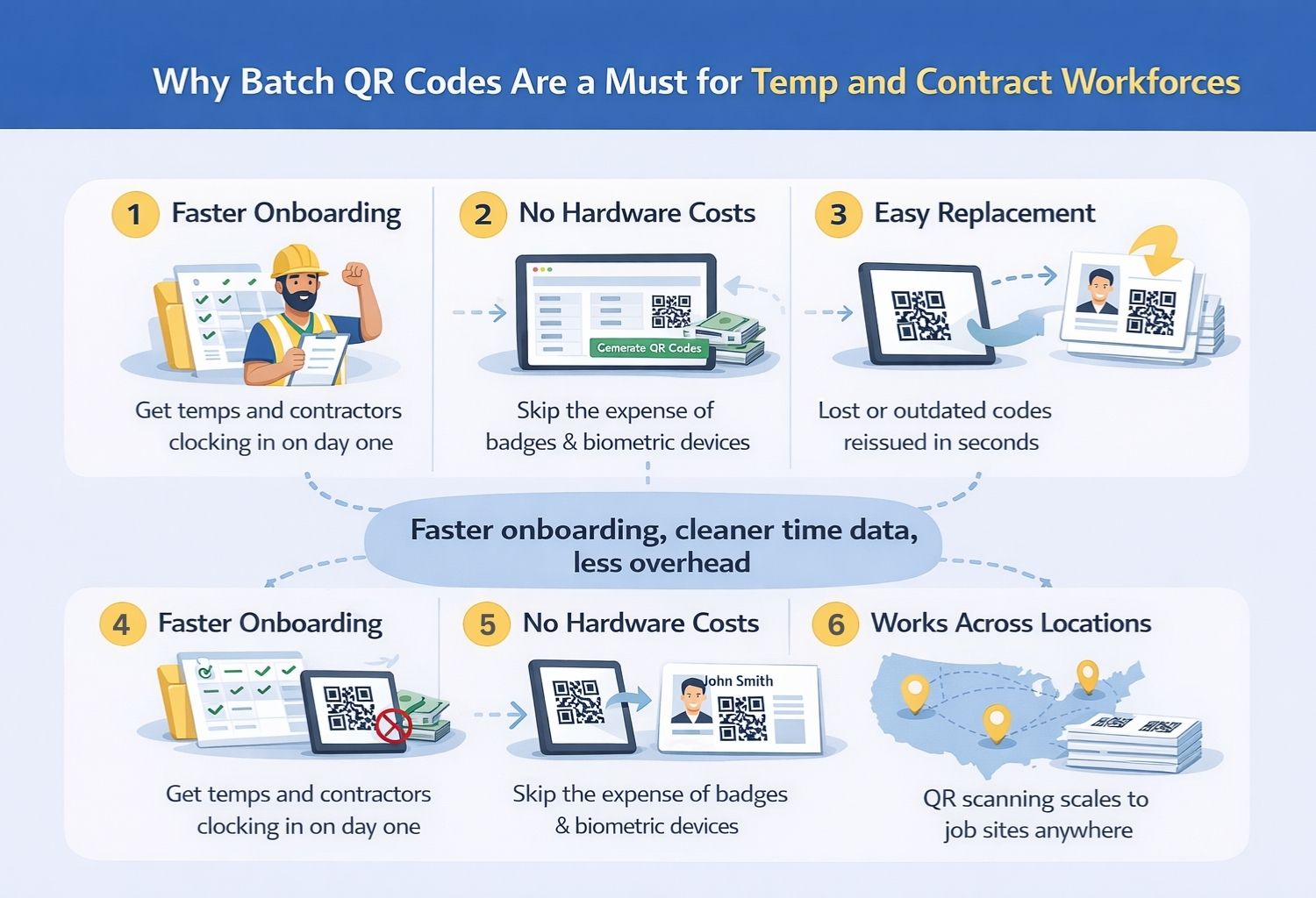
Plus, it’s way cheaper and more scalable than printing badges or setting up biometric devices for everyone. Just print the QR codes and go.
FAQs
Can I use this for 100% temp staff?
Yes. As long as they have a UKG employee ID even if it’s just for a short-term assignment—you can generate a QR code for them.
Do I need special hardware?
Nope. Any iPad or Android tablet works with hrPad. Just install the app and you’re good to go.
What if someone loses their QR card?
You can regenerate it in seconds. No disruption, no data loss.
Can the QR cards be branded?
Yes. You can add logos, colors, employee names whatever makes sense for your team.
How fast can I get this running?
You can generate and print QR codes the same day. Once your data is ready, it’s fast.
Conclusion
If you’re regularly hiring temporary, seasonal, or contract workers, having a fast and reliable time tracking system isn’t optional, it’s a necessity. QR codes make it easy to get new workers up and running in minutes, and CloudApper hrPad brings the whole thing together in one simple, tablet-based system. It connects directly to UKG, eliminates the need for expensive hardware, and lets you batch-generate, print, and manage QR codes at scale.
Whether you’re ramping up for peak season or managing multiple job sites, hrPad gives you the flexibility to stay in control, keep your records clean, and your operations moving.